USB Passthrough Troubleshooting for Kali Linux VMs
Table of Contents
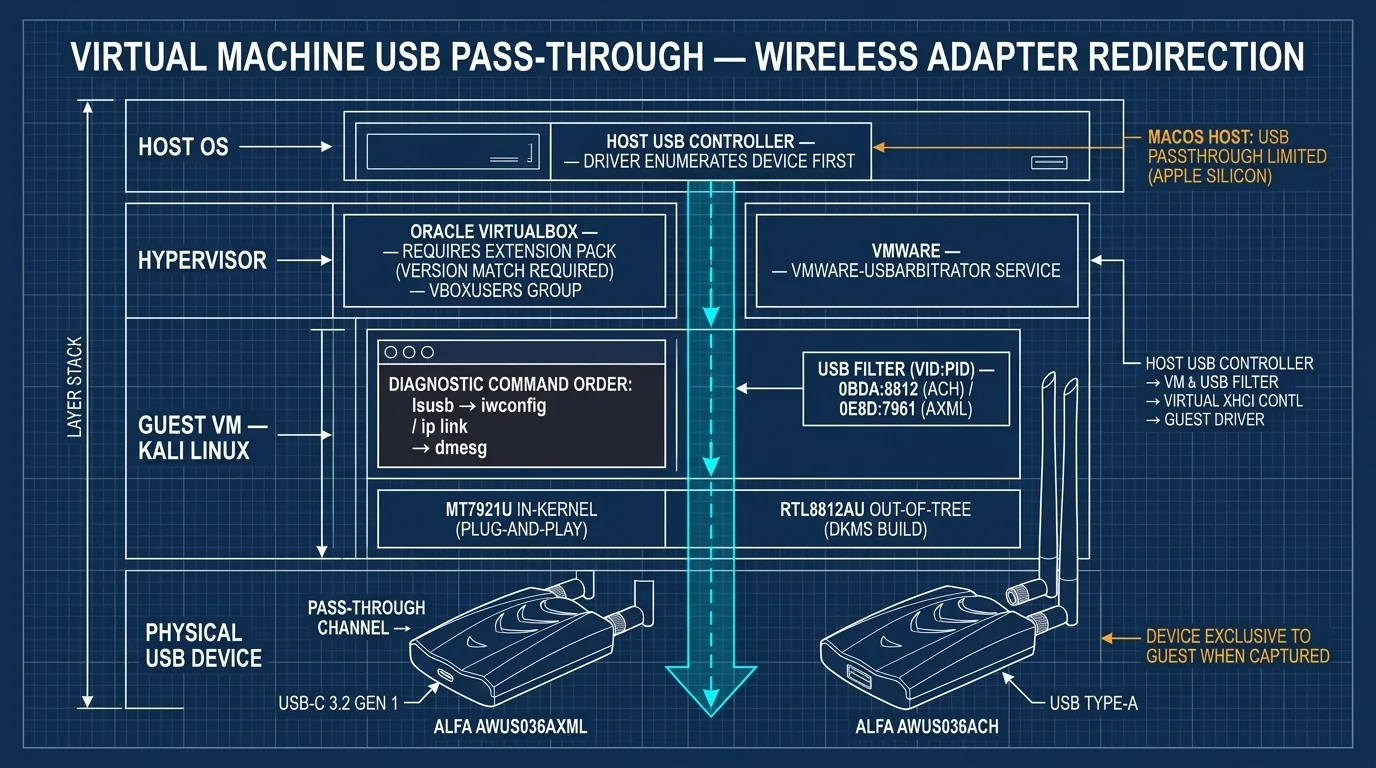
Supported hosts: Windows / Linux / macOS hosts running Oracle VirtualBox / VMware Workstation (Guest = Kali Linux / Debian / Ubuntu) Featured hardware: ALFA AWUS036ACH (Realtek RTL8812AU) / ALFA AWUS036AXML (MediaTek MT7921AUN) Scope: A standardized USB Pass-through troubleshooting manual. macOS host USB passthrough limitations are covered in Chapter 5.
Many Kali users plug the adapter into the host, then see no wireless interface inside the VM. In most cases the cause is one of three very common issues — a dead adapter is unlikely:
- VirtualBox Extension Pack is not installed: without it, the Guest cannot use USB 2.0/3.0 controllers at all (USB 1.1 tops out at 12 Mbps, nowhere near enough for a wireless adapter).
- USB passthrough is not configured: the host claims every USB device by default. The Guest either needs a manual attach, or a VM USB Filter that takes over the adapter automatically.
- The driver inside the Guest is not loaded: the USB layer passed through (
lsusbshows the device), but Linux has no matching driver, soip linkshows nowlaninterface.
Troubleshoot in order: host hardware first, then Guest passthrough, then the driver layer — see 1.3 for the full diagnostic mnemonic.
1. Why Can’t the VM Use the Host’s Wireless Adapter by Default?#
1.1 Your USB Adapter Belongs to One OS at a Time#
USB works on a single-host architecture: one USB device can be controlled by only one USB Host Controller at any given moment. When you plug the adapter into the host, the Host OS enumerates and claims it. The host driver recognizes it and controls it.
A Guest VM is not a physical device on the USB bus — it is “virtual hardware” that the Hypervisor emulates inside the host. For the Guest to use the USB adapter, the host must actively hand the device over to the Guest — this mechanism is called USB Pass-through (USB Redirection).
1.2 What Actually Passes Through?#
With VirtualBox, the flow looks like this:
Physical USB adapter (AWUS036ACH / AWUS036AXML)
       │  plugged into a physical USB port on the host
       ▼
Host OS USB host controller
       │  Hypervisor (VirtualBox) intercepts and redirects
       ▼
Virtual USB host controller (emulated EHCI / xHCI)
       │  the Guest (Kali) sees it "as if plugged into itself"
       ▼
Kali USB driver → wireless driver → wlan interface
Once passthrough succeeds, control of the device on the host side transfers to the Guest — the host behaves as if the device was “unplugged” and can no longer use it. Inside the Guest it appears as a brand-new USB device. This is normal behavior, not a bug. One USB device on the host cannot serve both sides at once.
1.3 “Can’t See It” Actually Has Three Layers#
| Layer | Check with | Symptom | What it means |
|---|---|---|---|
| USB passthrough layer | lsusb inside the Guest | lsusb shows no VID:PID for the adapter at all | Passthrough failed (Extension Pack / controller / filter issue) |
| Driver layer | dmesg inside the Guest | lsusb shows the device, but dmesg reports errors (missing firmware, Required key not available) | Missing driver inside the Guest, or module failed to load |
| Wireless interface layer | iwconfig / ip link inside the Guest | lsusb and dmesg are both clean, but no wlan interface | Driver loaded but the interface did not register, or a mode/config issue |
Diagnostic mnemonic: first run
lsusbto see whether the device passed through into the Guest, then runip linkto see whether the driver recognizes it. Don’t start by suspecting the adapter is dead.
2. VirtualBox: Install the Extension Pack First, Then Set the USB 3.0 Controller#
2.1 The Extension Pack Is Mandatory#
The base VirtualBox package only emulates the USB 1.1 (OHCI) controller, and USB 1.1 throughput is nowhere near enough for a wireless adapter. USB 2.0 (EHCI) and USB 3.0 (xHCI) controllers are only available through Oracle’s official Extension Pack.
The symptoms of a missing Extension Pack are typical: the Guest settings offer no USB 2.0 / USB 3.0 controller option, or attaching the adapter fails with “device connection to the virtual machine failed (error code E_FAIL / VERR_PDM_NO_USB_PORTS)”.
2.2 The Version Must Match Exactly#
The Extension Pack version must match the VirtualBox version exactly (e.g., VirtualBox 7.0.20 requires the 7.0.20 Extension Pack). Even a minor version mismatch can fail installation or loading.
# Check the current VirtualBox version
vboxmanage --version
Download the matching Oracle_VM_VirtualBox_Extension_Pack-<version>.vbox-extpack from the official Oracle download page (https://www.virtualbox.org/wiki/Downloads), then:
# Option 1: GUI install (VirtualBox main window → File → Tools → Extension Pack Manager → Install)
# Option 2: Command-line install
sudo VBoxManage extpack install Oracle_VM_VirtualBox_Extension_Pack-*.vbox-extpack

# Confirm the installation
VBoxManage list extpacks
The installer shows the Oracle license (Personal Use and Evaluation License); personal use is free — for commercial environments, follow the license terms.
2.3 Linux Hosts: Add Yourself to the vboxusers Group#
On a Linux host, VirtualBox needs your user to belong to the vboxusers group to access USB devices. Many people install the Extension Pack and still fail — the blocker is permissions.
# Join the group (replace <user> with your username)
sudo usermod -aG vboxusers $USER

# Log out and back in (or reboot) for the group to take effect; verify it
id $USER
2.4 Set the USB 3.0 (xHCI) Controller#
- Select your Kali VM → Settings → Ports → USB.
- Check “Enable USB Controller” and select USB 3.0 (xHCI) Controller.
- The AWUS036AXML is a USB 3.2 Gen 1 (USB-C) device — you must select USB 3.0 (xHCI); USB 2.0 would throttle the transfer rate.
- The AWUS036ACH uses USB Type-A and works under both USB 2.0 and USB 3.0 controllers; for the best transfer rate, select USB 3.0 (xHCI) as well.
- After changing the controller, power off and power on (not a reboot inside the Guest) for the change to take effect.
2.5 Manual Attach and the VMware Comparison#
With the Kali VM running, look at the USB icon in the bottom-right corner of the window (a USB plug):
- Click the USB icon — it lists the USB devices currently attached to the host.
- Your adapter should appear as something like
Realtek 802.11ac NIC(ACH), orALFA AWUS036AXML/ MediaTek (AXML). - Click it once and the device is handed over to Kali.
If the list is empty, the passthrough layer has a problem — go back and check 2.2 / 2.3 / 2.4 (including the USB controller not being enabled), or run the Chapter 6 troubleshooting worksheet.
VMware comparison: VMware Workstation / Fusion does not need an extra Extension Pack for USB passthrough, but there are two common checkpoints:
- Host-side service: on Linux hosts, confirm
vmware-usbarbitrator(the USB arbitration service) is running:sudo systemctl status vmware-usbarbitrator # If it is not running, start it and enable it at boot sudo systemctl enable --now vmware-usbarbitrator - VM settings: VM Settings → USB Controller → check USB 3.1 (or USB 3.0).
- Manual connect: VMware window menu → Removable Devices → your adapter → Connect.
Key comparison: VirtualBox usually fails because the Extension Pack is missing; VMware usually fails because the arbitration service is not running or the USB 3.0 controller is off. Confirm which product you use, then check the matching item.
3. Three Diagnostic Commands: lsusb → iwconfig → dmesg#
After the passthrough setup, three commands pinpoint whether the problem is in the “passthrough layer” or the “driver layer”.
Step 0: Confirm the Hardware on the Host First (Don’t Blame the Adapter)#
Open a terminal on the host OS and run:
lsusbExpected output (depending on the model):
# AWUS036ACH (Realtek RTL8812AU)
Bus ... ID 0bda:8812 Realtek Semiconductor Corp. RTL8812AU 802.11a/b/g/n/ac 2T2R DB WLAN Adapter
# or AWUS036AXML (MediaTek MT7921AUN)
Bus ... ID 0e8d:7961 MediaTek Inc. Wireless_Device- The host sees it → hardware and cable are fine; the problem is in passthrough or the Guest driver.
- The host does not see it → check the host side first (try another USB port, another cable, cross-test on another machine), then consider opening a support ticket.
Step 1: lsusb Inside the Guest — Did Passthrough Succeed?#
Run inside the Kali VM:
lsusb- Same VID:PID visible → passthrough succeeded, go to Step 2.
- Not visible → passthrough failed; go back to Chapter 2 (Extension Pack / controller / vboxusers group), or check whether other host software is holding the adapter.
Step 2: iwconfig / ip link — Did the Wireless Interface Appear?#
iwconfig
# or (newer versions)
iw dev
ip link- A
wlan0/wlx...interface appears → everything is working, start using it. - No wireless interface but
lsusbshows the device → the problem is in the Guest driver layer; go to Step 3.
Step 3: dmesg — Why Did the Driver Layer Fail?#
# Watch the kernel's recent messages
sudo dmesg | tail -30
# Filter USB and wireless-related messages
sudo dmesg | grep -iE "usb|wlan|8812|mt7921|rtl" | tail -30
Common dmesg results:
dmesg message | Cause | Fix |
|---|---|---|
usb 3-1: new high-speed USB device ... with nothing after it | Device enumerated, but no driver available | Install the matching driver inside the Guest (see FAQ Q4) |
Direct firmware load failed / firmware_loading | Firmware file missing | apt install firmware-realtek, then reload the module |
Required key not available | Secure Boot is on and the module is unsigned | Sign it with a MOK key (do not disable Secure Boot) |
disagrees about version of symbol | Driver version does not match the kernel | Rebuild and install with DKMS |
Key insight:
lsusbshowing the device only proves “USB passthrough worked” — it does not mean the driver is loaded. The common “passthrough works but no wlan” case is exactly this: no matching driver inside the Guest.
4. USB VM Filter: Auto-Attach on Plug-In + Disconnect Troubleshooting#
4.1 Why Set Up a USB Filter?#
The problem with manual attach (Chapter 2, 2.5): you have to click again every time you restart the Kali VM. With a USB Filter, the moment the adapter is plugged in (or the VM boots), VirtualBox automatically moves matching devices into the Guest.
How to set it up (VirtualBox):
- VM Settings → USB → click the "+" to add a filter → select your adapter.
- VirtualBox auto-fills a filter rule (vendor ID / product ID / serial number fields):
- Name: e.g.,
ALFA AWUS036AXMLorAWUS036ACH - Vendor ID:
0bdafor AWUS036ACH,0e8dfor AWUS036AXML - Product ID:
8812for AWUS036ACH,7961for AWUS036AXML
- Name: e.g.,
- If you have multiple adapters of the same model, also fill in the Serial Number field so the filter does not grab the wrong one.
Tip: right-click the filter → Edit Filter — you can keep only the Vendor ID and Product ID (loose match) or add the serial number (exact match).
4.2 Frequent Disconnects: Usually Power or Controller Issues#
High-power adapters (the AWUS036ACH draws higher transient current during monitor/injection; the AWUS036AXML is a USB 3 device) can occasionally “drop / disconnect” inside a VM. Typical causes and fixes:
| Symptom | Cause | Fix |
|---|---|---|
| Underpowered after passthrough, keeps dropping | The emulated virtual USB controller is conservative about power, or the host port cannot supply enough | Use a rear motherboard USB port on the host, or a USB Hub with its own power supply |
| Adapter appears and disappears | The host’s USB autosuspend put the device to sleep | Disable USB auto-suspend for “that device” in the host settings (do not disable system-wide security protections) |
| Attach fails immediately with a string of error codes | Wrong controller selected (USB 1.1/2.0 cannot support a USB 3 device) | Switch to USB 3.0 (xHCI) Controller and power-cycle |
| Adapter dead after the host wakes from sleep | The Hypervisor’s USB redirection broke during host sleep | Avoid host sleep while in use; or re-attach once after wake |
4.3 Security Reminder#
To reduce drops you may disable auto-suspend for a single USB device, but only at the “that device” level. Do not disable system-level security protections (firewall, Secure Boot) to save yourself the trouble — the cost is disproportionate.
5. macOS Host Limitations and Platform Boundaries#
5.1 macOS Hosts Have Inherent USB Passthrough Limits#
Running a VM from a macOS host with USB passthrough is the combination most likely to get stuck. Check your situation first:
| macOS host | VirtualBox | VMware Fusion |
|---|---|---|
| Apple Silicon (M1/M2/M3/M4) | ⚠️ USB passthrough support is limited / incomplete — one of the officially documented limitations; even with a working adapter driver, the passthrough layer may be unusable | ⚠️ More complete support, but still recommended to “plug directly into the host” first to confirm the adapter works on macOS |
| Intel (Intel Mac) | ✅ Works, but you must first complete the Kernel Extension approval flow (System Settings → Privacy & Security → allow Oracle-related kernel extensions) and install an exactly matching Extension Pack | ✅ Works |
Recommendation: if your host is macOS, make “plug directly into the host → system_profiler SPUSBDataType → confirm the adapter works on the host” the first gate of every troubleshooting session. Do not bring models unsupported on macOS into the VM troubleshooting list — it wastes a lot of time.
5.2 Platform Boundaries (Support Boundary)#
| Platform | Support status | Notes |
|---|---|---|
| Windows host + VirtualBox / VMware + Kali Guest | ✅ Supported | All procedures in this article apply |
| Linux host + VirtualBox / VMware + Kali Guest | ✅ Supported | Remember the vboxusers group (VB) and the vmware-usbarbitrator service (VMware) |
| macOS (Apple Silicon) + VirtualBox | ⚠️ USB passthrough limited | Switch to VMware Fusion, or use a Linux / Windows host |
| macOS (Intel) + VirtualBox | ✅ Supported | Requires kernel extension approval + a version-matched Extension Pack |
| Guest is macOS | ❌ Not recommended | This article assumes Linux Guests such as Kali / Debian / Ubuntu |
Support boundary: before troubleshooting, always confirm “does the host see the adapter” first, then talk about VM settings. If the host itself cannot see the adapter, no VM setting can fix it — the next step is a host-side driver issue (see other driver troubleshooting articles on this site).
6. Standard Troubleshooting Worksheet: Run It Before You File a Ticket (Support Intake)#
When you hit “VM can’t see the adapter”, work through the table below in order and record the results. Run the full worksheet before deciding to open a support ticket — many cases resolve themselves, and it dramatically shortens support back-and-forth.
Step 1: Host Hardware Check#
| Check | Command | Record |
|---|---|---|
| Host OS and architecture | uname -a / systeminfo | _____ |
| Does the host see the adapter? | lsusb on the host | VID:PID _____ |
| USB port and cable | Try another port, another cable | Result _____ |
Step 2: Hypervisor Layer Check#
| Check | Action | Record |
|---|---|---|
| Hypervisor and version | VirtualBox: vboxmanage --version / VMware: Help → About | _____ |
| Extension Pack version matches? | VirtualBox: VBoxManage list extpacks | Version _____ |
| Host permissions / service | Linux host: id to check vboxusers; VMware: systemctl status vmware-usbarbitrator | _____ |
| USB controller setting | VirtualBox: USB 3.0 (xHCI) Controller checked? | Yes / No |
Step 3: Passthrough Result Check#
| Check | Command | Record |
|---|---|---|
| Does the Guest see the adapter? | lsusb inside the Guest | _____ |
| Wireless interface appeared? | iwconfig / ip link inside the Guest | _____ |
| Driver-layer messages | sudo dmesg | tail -30 inside the Guest | _____ |
| Guest kernel in use | uname -r | _____ |
Step 4: Verdict and Record#
lsusb(Guest) shows nothing → passthrough layer problem → review Chapter 2 and Step 2.lsusbshows the device butip linkhas no wlan → driver layer problem → review Chapter 3, Step 3.- Everything normal but unstable → power / autosuspend / controller problem → Chapter 4.
Support Intake Information Packet#
Before calling support or submitting a ticket, attach the following in one go so the agent can get straight to the point:
Host OS + architecture, hypervisor and version, whether an Extension Pack is installed and its version, host-side
lsusboutput, Guest-sidelsusboutput, Guest-sideip link/iwconfigoutput, relevantdmesgmessages, adapter model and connection method (USB-C / USB-A, direct or via Hub)
7. FAQ#
Q1: I moved the adapter to another USB port and now lsusb shows nothing. Is the adapter dead?
Not necessarily. First check whether you plugged it into a charge-only port, or whether the host put the device to sleep to save power. Move it back to a standard USB port on the motherboard’s rear I/O panel, or unplug and replug it once — that usually restores it.
Q2: The USB icon in the bottom-right corner of the VM window is empty. What should I do?
Check in order: ① the Extension Pack version exactly matches VirtualBox; ② on Linux hosts, your user is in the vboxusers group (requires re-login); ③ the host still sees the adapter with lsusb; ④ no other software (such as a host-side driver utility) is holding the device.
Q3: After setting up a USB filter, the host can no longer use the adapter. Is that normal? Yes, that is expected. Once the device is passed through to the Guest, control belongs to the Guest and the host cannot use it at the same time. When you need the adapter back on the host, release it from the USB icon in the VM window.
Q4: lsusb inside the Guest shows the adapter, but there is no wlan interface. Which driver should I install?
It depends on the chipset:
- AWUS036AXML (MediaTek MT7921AUN): uses the in-kernel
mt7921udriver — plug-and-play on Kernel 5.18+; first make sureapt install linux-firmwareis up to date. - AWUS036ACH (Realtek RTL8812AU): uses an out-of-tree driver — install the community-maintained
aircrack-ng/rtl8812auand compile it with DKMS (and handle MOK signing for Secure Boot; do not disable Secure Boot).
Q5: Why does the Guest fail to boot after I selected the USB 3.0 controller? A few older Guest kernels have poor xHCI support. If your Kali is an older release, try: shut down → switch back to USB 2.0 (EHCI) Controller → boot → upgrade the kernel → switch back to USB 3.0. Keep Kali as current as possible for the most complete xHCI support.
Q6: The adapter is fast on a physical machine but slow inside the VM. Is that normal? Yes. Inside a VM the adapter performs roughly at the speed of USB emulation-layer forwarding, which adds some overhead compared with a direct connection on a physical machine. A correct USB 3.0 (xHCI) controller and an up-to-date Hypervisor keep that overhead to a minimum. If performance is severely degraded, first confirm the controller is not stuck on USB 1.1.
8. Conclusion and Hardware Recommendations#
More than 90% of “VM can’t see the adapter” cases come down to passthrough settings or Guest drivers done wrong — hardware failure is rare. Run through this article’s steps in order:
- Confirm the hardware with
lsusbon the host first. - Always install a version-matched Extension Pack on VirtualBox, and join the
vboxusersgroup on Linux hosts; on VMware, confirm thevmware-usbarbitratorservice is running. - Set the USB controller to USB 3.0 (xHCI), and use a USB filter so the adapter attaches automatically.
- Inside the Guest, locate the layer with
lsusb → iwconfig / ip link → dmesg; install the missing driver — stop guessing the adapter is dead.
Recommended hardware: the ALFA AWUS036AXML (MediaTek MT7921AUN) has an in-kernel driver, plug-and-play on newer Kali kernels — the least hassle after VM passthrough. The ALFA AWUS036ACH (Realtek RTL8812AU) is equally capable, but remember to compile the community driver with DKMS inside the Guest and handle Secure Boot signing (see this site’s RTL8812AU DKMS troubleshooting article). For both, use a USB port / Hub with its own power supply on the host side to eliminate the “dropping” variable in one go. Note that injection depends on the kernel: community reports of working injection exist for kernels before 6.16, but on stock kernel 6.16 and later (tested on 6.17) the AXML fails the packet-injection test (aireplay-ng --test: Found 0 APs / No Answer), so deauth and handshake capture are not possible. The cause is a mac80211 chanctx regression, not a chip limitation; patched community drivers can restore injection, but the firmware still locks the rate (1/6 Mbps, no HT/VHT injection). Monitor mode, AP and WPA3 are unaffected. If you need injection, choose the AWUS036ACH or AWUS036EACS instead.
Next step: save a copy of the Chapter 6 worksheet on your Kali VM desktop; every time the adapter “disappears”, run the whole thing first, then decide whether to open a support ticket — follow the sheet, data cures all.
References#
| Resource | Link |
|---|---|
| Oracle VirtualBox official download page (Extension Pack) | https://www.virtualbox.org/wiki/Downloads |
| VirtualBox official manual: USB settings and filters | https://www.virtualbox.org/manual/ (search the “USB” chapter) |
| VirtualBox manual: known limitations (incl. Apple Silicon USB passthrough limits) | https://www.virtualbox.org/manual/ (Changelog / Limitations) |
| VirtualBox Extension Pack install command | vboxmanage help extpack |
| aircrack-ng RTL8812AU community driver (for AWUS036ACH inside the Guest) | https://github.com/aircrack-ng/rtl8812au |
| ALFA AWUS036ACH official product page | https://www.alfa.com.tw/products/awus036ach_1 |
| ALFA AWUS036AXML official product page | https://www.alfa.com.tw/ |
| Yopitek technical support | https://yupitek.com/ |
Legal use notice: security operations such as monitor mode and packet injection inside a VM are only permitted on networks you own or are explicitly authorized to test. Users must comply with local laws and ensure every test has a legal authorization basis.