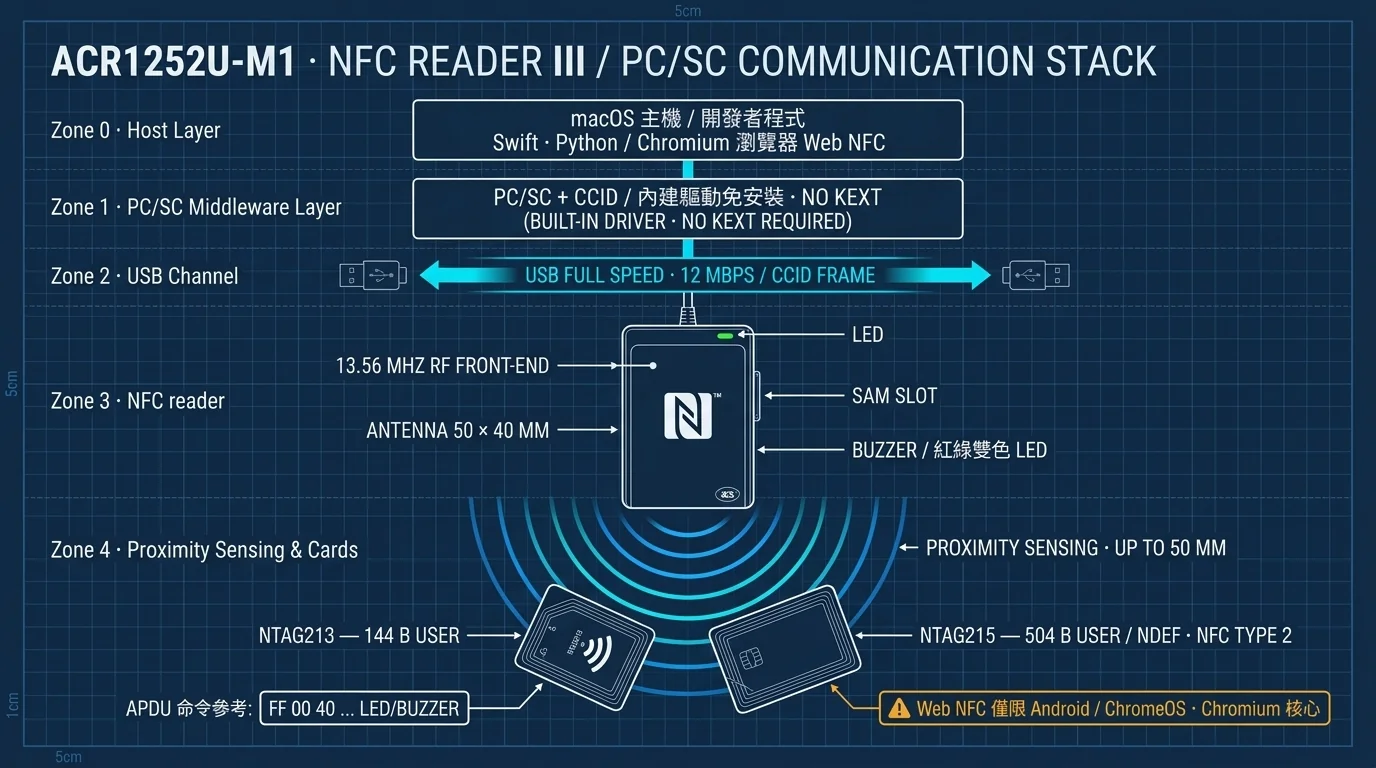
Web NFC and APDU Development with ACS ACR1252U-M1 on macOS
Table of Contents
Product spotlight: ACS ACR1252U-M1 (USB NFC Reader III, NFC Forum-certified card reader) Who this is for: macOS (Apple Silicon) application developers, Web NFC front-end engineers, smart card / access control testers, makers, and lab researchers What you’ll learn: the CCID / PC/SC standards behind macOS’s native support, plus how to work with NTAG213/NTAG215 tags on two development paths — Web NFC in the browser and APDU in local programs — including byte-level control of the reader’s buzzer and dual-color LED.
⚠️ The support boundary, up front (read before you buy)
- The Web NFC API currently works only in Chromium-based browsers, and only on Android and ChromeOS devices. Desktop Chrome on macOS/Windows/Linux, desktop Edge, Firefox, and Safari all lack the
NDEFReaderinterface.- Safari on macOS and iOS (any browser) do not support Web NFC at all; on iOS, NFC access requires Apple’s native Core NFC framework (you must write an app).
- Web NFC in the browser uses the device’s built-in NFC controller (e.g., an Android phone or ChromeOS laptop) — not an external USB reader. The external ACR1252U-M1 speaks the PC/SC standard and is driven by APDU commands from local programs. These are two separate paths, so confirm your target platform before you order.
Opening: One NFC Card, Two Development Paths#
Suppose you hold an NTAG215 access-control or anti-counterfeiting tag and want it to become data a browser can read and write. At the same time, you want to write a small macOS utility that makes the reader “beep once and flash green” with raw bytes.
These two needs map to two completely different technologies:
- Web NFC API: in a supported browser (Chromium on Android/ChromeOS), a few lines of JavaScript read and write NDEF tags directly — no reader hardware required.
- APDU (Application Protocol Data Unit): through the PC/SC standard, local programs (Swift, Python…) send byte-level commands to the reader, extending control beyond the card to the device itself — for example, the reader’s buzzer and dual-color LED.
ACS ACR1252U-M1 is a strong first development reader because it complies with the CCID standard and carries PC/SC and NFC Forum certification — on macOS it works out of the box with no third-party driver. The guide covers three areas: why native support matters, Web NFC in practice, and APDU control of lights and buzzer, closing with a pre-purchase checklist.
1. CCID and PC/SC on Apple Silicon Macs: Why Native Support Matters to Developers#
1.1 Three Terms, Defined: CCID, PC/SC, and Native Support#
| Term | Full name | In one sentence |
|---|---|---|
| CCID | Chip Card Interface Device | A USB device class that defines how smart card readers communicate over USB. For CCID-compliant devices, the OS handles the protocol. |
| PC/SC | Personal Computer/Smart Card | An API standard that lets applications access smart card readers through a unified interface, regardless of the chip vendor underneath. |
| Native support | Driverless / Built-in Driver | The OS ships with a driver for the class; plug in and it works — no vendor driver disc required. |
In plain terms: CCID standardizes “how the reader talks to the computer” as a USB specification, and PC/SC standardizes “how applications call the reader” as a unified API. With both in place, the OS supports the device at the kernel level — that is what “native support” means.
The ACR1252U-M1 carries CCID, PC/SC, NFC Forum, and FeliCa Performance certifications (as stated in its datasheet). That means it is plug-and-play on any OS that implements these two standards.
1.2 Why This Matters Especially on Apple Silicon#
In the Apple Silicon (M1/M2/M3/M4) era, macOS has tightened third-party driver restrictions considerably:
- Kernel extensions (kexts) are treated as a transitional technology: system updates and Secure Boot aggressively block unsigned, unnotarized drivers. Maintaining a macOS driver users can actually install is expensive, and many vendors simply give up.
- macOS ships with the Smart Card Services framework, which includes built-in CCID reader support. A CCID-compliant reader therefore needs no vendor driver on macOS — the OS recognizes it on its own.
That is the real value of native support: you do not wait for a vendor to release an M-series-compatible driver, and you do not deal with Team ID or notarization. Major macOS updates do not break the reader either.
Verify that macOS recognizes the reader:
# List smart card readers (an ACR1252U / ACS entry means the system enumerated it)
system_profiler SPCardReaderDataType

# After installing pcsc-tools (brew package), watch live with pcsc_scan
brew install pcsc-tools
pcsc_scan
1.3 What It Means for Developers#
| Development scenario | Non-CCID reader | ACR1252U-M1 (CCID/PC/SC) |
|---|---|---|
| Driver install on macOS | Vendor installer + signing/notarization | None — plug and play |
| After a major macOS update | Often breaks (expired signature or rejected kext) | Unaffected |
| Switching development machines | Reinstall the driver on every machine | Just plug it in |
| Cross-platform (macOS/Linux/Windows) | Inconsistent vendor drivers | Same PC/SC commands |
| macOS security protections | Some require lowering security settings to load | No security protection needs to be disabled |
Security boundary: this product and every workflow in this article run under macOS’s default security settings (Full Security, System Integrity Protection enabled). If you hit a driver-loading problem on another platform, do not bypass it by disabling Secure Boot or downgrading security levels — the correct move is a CCID-compliant device or an OS-supported signing path.
2. Web NFC API in Practice: Reading and Writing NTAG213 / NTAG215 in the Browser#
2.1 Check the Support Matrix First#
The Web NFC API (the NDEFReader / NDEFWriter interfaces) is not available in every browser. Here is the actual state of play in 2026:
| Environment | Browser | Web NFC (NDEFReader) | Notes |
|---|---|---|---|
| Android | Chrome / Edge / Samsung Internet (Chromium-based) | ✅ Supported | Requires HTTPS or localhost, plus a user gesture |
| ChromeOS | Built-in Chrome | ✅ Supported | Device must have an NFC controller |
| macOS desktop | Chrome / desktop Edge | ❌ Not supported | Desktop Chrome has no Web NFC |
| macOS desktop | Safari | ❌ Not supported | No Safari release has it |
| Windows / Linux desktop | Desktop Chrome / Edge / Firefox | ❌ Not supported | Web NFC is not exposed to desktop browsers |
| iOS (iPhone/iPad) | Any browser (incl. Chrome, Edge iOS) | ❌ Not supported | All iOS browsers use WebKit; NFC requires Core NFC in a native app |
Bottom line: to work with NFC tags “for real” in a browser, you need an Android phone or a ChromeOS device. On the macOS desktop, the ACR1252U-M1 earns its keep through the PC/SC local-program development covered in sections 2 and 3 — reading and writing the same tags, or sending APDU commands to control the reader.
Another key misconception: Web NFC in the browser uses the device’s built-in NFC chip (the NFC controller in a phone or ChromeOS laptop) — an external USB reader is never used by browser Web NFC. So no, plugging an ACR1252U-M1 into a Chromebook does not let a web page read cards. The two paths draw on different hardware.
2.2 The Tags You Need: NTAG213 and NTAG215#
Web NFC’s NDEF format pairs most commonly with NFC Forum Type 2 tags — NXP’s NTAG213 / NTAG215 / NTAG216 family (common in access control, business cards, anti-counterfeiting, Amiibo stand-ins, and more):
| Item | NTAG213 | NTAG215 |
|---|---|---|
| User memory | 144 bytes | 504 bytes |
| Usable NDEF capacity | ~137 bytes | ~496 bytes |
| Typical use | Short links, a single business card, small payloads | Medium payloads (longer JSON / multiple records) |
| Read/write rate | 106 kbps (actual rate set by the reader) | 106 kbps |
| Security | One password | One password |
Capacity in context: 137 bytes holds roughly 130 English characters; for medium content under 1 KB, or experiments with multiple records per card, choose the NTAG215. Early in development, keep a stack of blank tags (blank, unlocked, no password) so you can rewrite freely.
“Locked” means two different things: after setting a password, you can still authenticate with the PWD_AUTH command and keep writing; the truly irreversible step is writing the Lock Bits — once locked, write access never comes back.
2.3 Read Example (NDEFReader.scan)#
Open an HTTPS (or localhost) page in Android Chrome / ChromeOS Chrome and hold the tag against the device’s NFC antenna area. Example:
<!DOCTYPE html>
<html lang="en">
<head>
  <meta charset="UTF-8">
  <meta name="viewport" content="width=device-width, initial-scale=1">
  <title>Web NFC Read/Write Demo</title>
</head>
<body>
  <h1>Web NFC Read/Write Demo</h1>
  <button id="btnScan">Start Scan</button>
  <button id="btnWrite">Write Tag</button>
  <pre id="output"></pre>

  <script>
    const out = (msg) => {
      document.getElementById('output').textContent += msg + '\n';
    };

    if (!('NDEFReader' in window)) {
      out('This browser does not support Web NFC (NDEFReader).\nPlease use Android Chrome or ChromeOS Chrome instead.');
    }

    // Read: scan() must be triggered by a user gesture
    document.getElementById('btnScan').addEventListener('click', async () => {
      try {
        const reader = new NDEFReader();
        await reader.scan();
        out('Scanning started. Hold the tag near the phone\'s NFC antenna area...');

        reader.onreading = (event) => {
          out('--- Tag read ---');
          out('Serial Number: ' + event.serialNumber);
          for (const record of event.message.records) {
            out('recordType: ' + record.recordType);
            if (record.recordType === 'text' || record.recordType === 'url') {
              out('Content: ' + record.data);
            } else {
              out('Content (binary ByteArray): ' + new Uint8Array(record.data));
            }
          }
        };

        reader.onreadingerror = () => out('Read error: check whether the tag supports NDEF.');
      } catch (err) {
        out('scan() failed: ' + err.name + ' / ' + err.message);
      }
    });
  </script>
</body>
</html>
For NTAG213/NTAG215 (Type 2) tags,
event.messagesplits the tag’s NDEF message intorecords: fortextandurlrecord types,record.datais already a string; other types arrive asArrayBufferand need conversion.
2.4 Write Example (NDEFReader.write)#
Replace the button handler above with:
// Write: write() also needs a user gesture, and the tag must be in range
document.getElementById('btnWrite').addEventListener('click', async () => {
  try {
    const writer = new NDEFReader();

    // Option 1: write plain text (auto-wrapped as a text record)
    // await writer.write('Yopitek Web NFC test');

    // Option 2: write a URL record (good for business cards, traffic)
    await writer.write({
      records: [
        { type: 'url', data: 'https://www.yupitek.com' },
        { type: 'text', data: 'ALFA / ACS product tech blog' },
      ],
    });

    out('Write succeeded!');
  } catch (err) {
    out('Write failed: ' + err.name + ' / ' + err.message);
  }
});
After writing, hold the same tag against the ACR1252U-M1 (or any NDEF-capable reading tool) to confirm the content was written correctly.
2.5 Common Pitfalls (Debugging Tips)#
| Symptom | Cause | Fix |
|---|---|---|
| Page reports “NDEFReader is not defined” | Desktop Chrome / Safari / Firefox do not support Web NFC | Use Android Chrome or ChromeOS; on macOS go the PC/SC route |
scan() throws NotAllowedError | Missing user gesture, or not on an HTTPS page | Call it from a button click; use http://localhost for local development |
| Tag detected but onreadingerror keeps firing | Tag capacity too small, corrupted format, or the card does not support NDEF | Try a blank, unlocked NTAG213/215 |
| Write fails halfway | Tag is locked (Lock Bits) or over capacity | Check capacity (137/496 bytes) and lock bits; locked tags cannot be recovered |
| No events after leaving the tab / screen off | Web NFC only works while the tab is in the foreground and focused | Keep the tab open; background scanning is not what Web NFC is for |
Security note (what not to do): Web NFC can only read and write what “the tag allows you to read and write.” If a card implements password verification, an ISO 14443-4 secure channel, or encryption (e.g., backend verification in an access-control system), the browser cannot — and should not — bypass its security. Every tutorial in this article is limited to blank tags and test cards you own or are authorized to use.
3. APDU Command Development: Controlling the Buzzer and Dual-Color LED with Bytes#
APDU is the “low-level language” of the smart card / reader world. Web NFC wraps the data format for you; driving the ACR1252U-M1 reader itself on macOS — its lights and buzzer — requires sending APDU directly.
3.1 APDU Structure in Brief#
A command sent to the reader/card is a byte sequence with this layout:
CLA  INS  P1  P2  Lc   Data(0~N bytes)   Le
└─command class┘└─instruction┘└─params┘ └─data length┘ └─expected response length┘- CLA: command class (0x00 = ISO 7816 standard; 0xFF = vendor-defined command space).
- INS: instruction code (0xA4 = SELECT, 0x20 = VERIFY, 0xCA = GET DATA…).
- P1 P2: two parameter bytes.
- Lc: length of the Data that follows (optional).
- Le: expected Response length (optional).
The response is data followed by two trailing bytes, SW1 SW2; common values include 90 00 (success), 6A 82 (file not found), and 63 00 (verification failed).
3.2 Setting Up the Development Environment on macOS#
macOS already includes PC/SC support, so installing Python’s pyscard is all you need to start sending APDU:
# Install pcsc-tools (includes pcsc_scan, handy for confirming the reader)
brew install pcsc-tools

# Install pyscard (talks to macOS's system PC/SC framework)
pip install pyscard

# Confirm pyscard can list readers
python3 -c "from smartcard.System import readers; print(readers())"
# Expected output, roughly: ['ACS ACR1252U ... 00 00']
3.3 First APDU: Echo and Firmware Version#
The ACR1252U-M1 supports ACS’s standard “Echo command” as a connectivity test; then read the firmware version to confirm communication with the computer:
from smartcard.System import readers
from smartcard.util import toHexString

reader = readers()[0]
conn = reader.createConnection()
conn.connect()

# 1) Echo: returns ASCII "12345678"
sw, data = conn.transmit([0xFF, 0x00, 0x00, 0x00, 0x00])
print('Echo SW :', toHexString(sw))
print('Echo data:', ''.join(chr(b) for b in data))

# 2) Firmware version
sw, data = conn.transmit([0xFF, 0x00, 0x48, 0x00, 0x00])
print('Firmware:', toHexString(data))
Seeing 12345678 means the PC/SC channel is healthy and the reader firmware is responding.
3.4 Sending APDU to a Card: MIFARE DESFire as an Example#
Think of a contactless card as a “byte postal system”: you send a command, it returns data. Using a MIFARE DESFire test card that supports real APDU (ISO 14443-4), send the “Get Version” command (90 60 00 00 00):
# DESFire GetVersion: a first response byte of 0x04 identifies the DESFire family (EV1/EV2/EV3)
sw, data = conn.transmit([0x90, 0x60, 0x00, 0x00, 0x00])
print('SW  :', toHexString(sw))
print('Data:', toHexString(data))
# e.g.: 04 01 01 00 04 12 08 01
#       └DESFire┘└version string┘     └firmware/hardware/production batch…┘
No DESFire on hand? Use the PPSE command for passive probing of any EMV contactless payment card:
00 A4 04 00 0E 32 50 41 59 2E 53 59 53 2E 44 44 46 30 31 00(SELECT “2PAY.SYS.DDF01”). Test cards you own only.
3.5 Controlling the Buzzer and Dual-Color (Red/Green) LED#
The ACR1252U-M1 body carries a dual-color LED (red/green) and a single-tone buzzer, both “user-controllable.” This is the most common status feedback in applications: card verified → beep once + green light; verification failed → red blinking. You know the result without looking at a screen.
Controlling these “reader body” features uses the vendor-defined command space (APDU prefixes starting with FF; CLA=0xFF is the vendor command reserved area). Typical structure ( byte mapping varies by firmware version — before development, follow ACS’s official ACR1252U-M1 Application Programming Interface document ):
FF  00  40  00  04  00  00  <LED>  <BUZZER>
└─vendor command prefix─┘ └Len┘ └─params─┘ └LED┘ └buzzer length┘| Parameter | Example value | Meaning (per example firmware) |
|---|---|---|
| LED | 0x00 | Off |
| LED | 0x01 | Red on |
| LED | 0x02 | Green on |
| LED | 0x03 | Red + green on |
| BUZZER | 0x00 | No beep |
| BUZZER | 0x04 | Beep ~1 second (time unit per official docs) |
# Green on + short beep (example bytes; check the official API doc for your firmware)
sw, data = conn.transmit([0xFF, 0x00, 0x40, 0x00, 0x04, 0x00, 0x00, 0x02, 0x04])
print('LED/Buzzer response:', toHexString(sw))   # expect 90 00 (success)

# Turn off
sw, data = conn.transmit([0xFF, 0x00, 0x40, 0x00, 0x04, 0x00, 0x00, 0x00, 0x00])
Development note: byte definitions and time units can differ between firmware versions. The proper workflow: read the firmware version with the command from 3.3, check the LED/BUZZER byte definitions in that version’s official API document, and verify with a real
SW1 SW2 = 90 00response. The examples here demonstrate the method of controlling device hardware with bytes — they are not a way around any card’s verification.Security boundary: the buzzer and LED are visible behaviors of the reader itself and have nothing to do with whether card content can be copied or forged. This article does not provide or touch any method for copying contactless access cards, bypassing card passwords, or defeating security verification; run all APDU tests only on cards and devices you own or are explicitly authorized to use.
4. Pre-Purchase Compatibility Worksheet#
Before ordering the ACR1252U-M1, answer the table below — your answers directly decide whether to buy, and which model:
4.1 What Is Your Primary Environment?#
| My primary environment | Suitable technology | Should I buy an ACR1252U? |
|---|---|---|
| Android phone / ChromeOS laptop | Web NFC API (browser) | ✅ Buyable, but the reader is not used by Web NFC; the browser uses the built-in NFC chip |
| macOS (Apple Silicon) + native app | PC/SC + APDU (pyscard/Swift) | ✅ The most recommended combination — native support |
| macOS browser (Safari / desktop Chrome) | — | ⚠️ No Web NFC support at all; if you only need a browser solution, use Android/ChromeOS |
| iOS (iPhone/iPad) | Core NFC (native app framework) | ⚠️ Reader not applicable (iOS needs built-in NFC or MFi-certified peripherals); evaluate separately |
| Linux (desktop/server) | pcscd + PC/SC | ✅ Supported (ccid package) |
| Windows | PC/SC | ✅ Supported (built-in CCID driver) |
For the full browser support matrix (including per-browser details), see the table in 2.1; this section only answers “should your primary environment buy one.”
4.2 What Do You Actually Need to Do?#
- Control the reader directly with APDU in a macOS local program (buzzer, LED, contactless card read/write) → Buy
- Read/write NDEF tags with Web NFC in a Chromium browser on Android/ChromeOS → No reader needed; use the device’s built-in NFC; the ACR1252U is only for PC/SC-side verification
- Support MIFARE / FeliCa / ISO 14443 B industrial or access-control cards → Buy (this model supports ISO 14443 A/B, MIFARE and FeliCa)
- Need a SAM (Secure Access Module) slot for key diversification and mutual-authentication experiments → Buy (built-in 1× SIM-size SAM slot)
- Testing FIDO / WebAuthn or YubiKey/PocketKey-style devices → Confirm FIDO support status in ACS’s official documentation first (this article does not endorse unverified specs)
- Your computer has only USB-C ports and you do not want adapters → Check whether ACS’s official product line has a USB-C variant of this series (per the ACS website); the M1 has a fixed USB-A cable
4.3 Hardware Specs at a Glance (Check Before Ordering)#
| Item | ACR1252U-M1 |
|---|---|
| Interface | USB Full Speed (12 Mbps), fixed 1 m USB-A cable |
| Read distance | Up to ~50 mm (depends on the tag) |
| Read/write rate | 106/212/424 Kbps |
| Certified card types | All four NFC types, ISO 14443 A/B, MIFARE Classic, FeliCa |
| Body controls | Dual-color LED (red/green), single-tone buzzer (both programmable) |
| Extra slot | 1× SAM (SIM size, ISO 7816 Class A) |
| Dimensions / weight | 98 × 65 × 12.8 mm / 81 g |
| Power | 5V, max 200 mA |
Decision rule: if your answers cluster around “macOS native app + APDU + contactless cards,” the ACR1252U-M1 is the closest match; if your application is definitely browser-only, plan around Android/ChromeOS and spend the budget on blank tags and test cards instead.
5. Conclusion#
For developers on Apple Silicon, “native support” is not an adjective — it is a verifiable engineering fact. Through the CCID / PC/SC standards, the ACR1252U-M1 lets macOS start development without installing any driver. Combined with Web NFC (Chromium/Android/ChromeOS) and PC/SC APDU (macOS local), the same batch of NTAG213/NTAG215 tags gives you full practice of “read, write, control” across both technical paths.
Remember two things: check your browser support first (Web NFC is limited to Chromium on Android/ChromeOS), then decide whether you need to control the reader itself (that is APDU’s job). The rest is up to the bytes.
Appendix: Troubleshooting Intake (For Support and Users)#
| Symptom | Check | Common cause and fix |
|---|---|---|
system_profiler SPCardReaderDataType shows no reader on macOS | Try another USB-A port / check the cable | Cable or power issue; the ACR1252U-M1 needs no extra driver — do not download third-party kexts |
pip install pyscard fails or readers() returns empty | Confirm Xcode Command Line Tools | Run xcode-select --install first; pyscard uses the system PC/SC framework |
APDU responds 6F 00 or an unexpected SW code | Check command length and prefix | Vendor command space must follow the official API document; bytes cannot be assembled arbitrarily |
| Buzzer/LED unresponsive | Check firmware version, then the command table | LED control bytes differ by firmware version; follow that version’s official document |
Browser reports NDEFReader is not defined | Go back to the 2.1 support table | Desktop Chrome, Safari, and iOS do not support it; use Android Chrome/ChromeOS |
| Tag write fails | Check capacity and lock status | 137/496-byte limits; tags locked (Lock Bits) cannot be recovered; password-protected tags need PWD_AUTH first |
| Same card reads intermittently | Check placement and distance | Keep within 50 mm and away from metal surfaces; approach the antenna center perpendicularly |
Disclaimer: this article is a technical write-up for academic and engineering development purposes. Web NFC support follows each browser’s official announcements; APDU byte definitions and reader behavior follow the ACR1252U-M1 firmware version and ACS’s official documentation. Run all contactless card tests on devices you own or are explicitly authorized to use. This article constitutes no official compatibility commitment for any commercial system or brand, and provides no method for bypassing card security mechanisms.