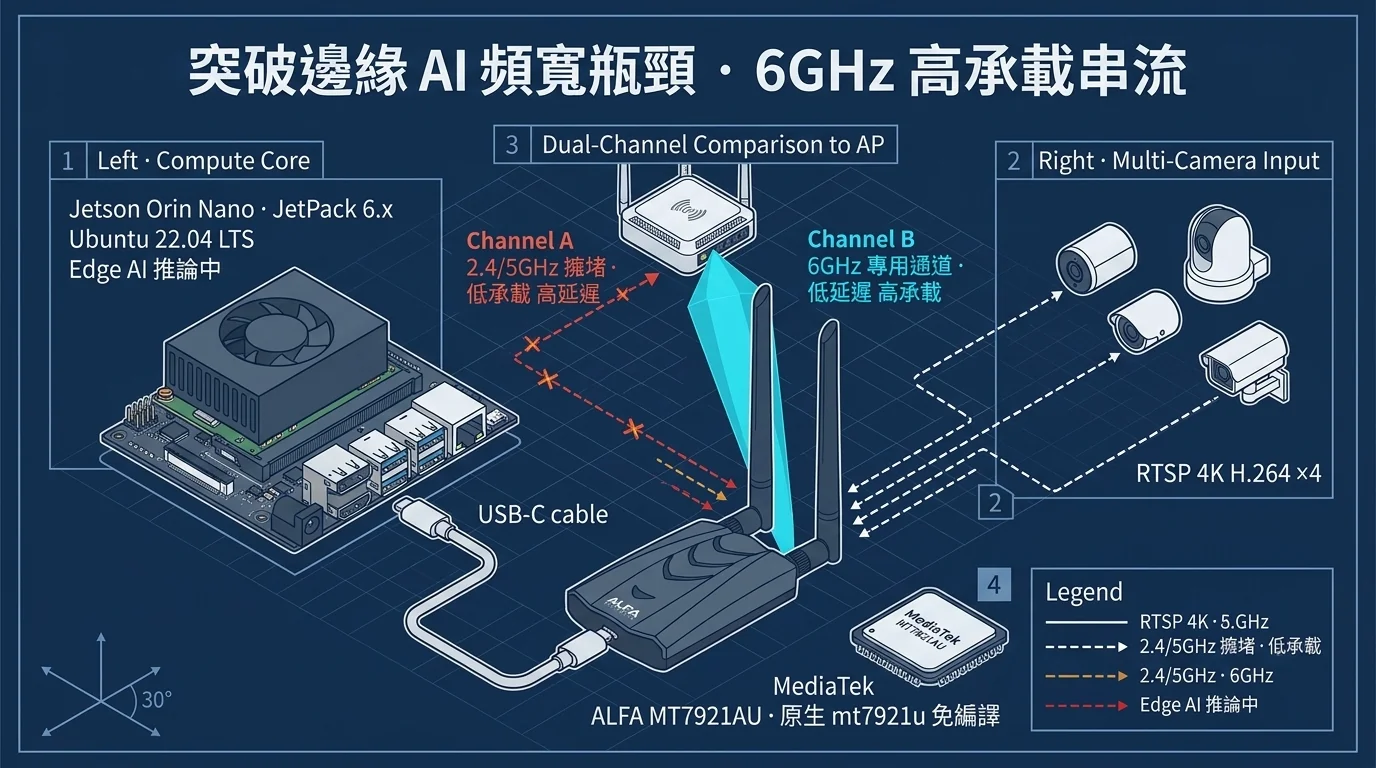
Break Edge AI Bandwidth Bottlenecks with 6GHz Wi-Fi 6E
Table of Contents
Target platform: NVIDIA Jetson Orin Nano Developer Kit, JetPack 6.x (Ubuntu 22.04 LTS base, Linux Kernel 5.15) Guide hardware: ALFA AWUS036AXML (MediaTek MT7921AUN chipset, Wi-Fi 6E tri-band USB adapter) Scope: This is a bench-test evaluation for a DIY open-source academic / engineering development platform — not official support for a commercial product, and not an endorsement by any closed-platform vendor.
Foreword: Where Does the Edge Device’s “Bandwidth Ceiling” Come From?#
Connecting a Jetson Orin Nano to an access point (AP) and running two or three IP cameras sounds routine. But the moment you push multiple 4K live streams into the GPU for inference, many people hit the wireless ceiling for the first time:
- Quality keeps dropping (bitrate stalls, picture goes hazy or blocky).
- Latency swings wildly, and the “temporal misalignment” of video AI inference becomes increasingly obvious.
- Scheduling stalls, the control center screen goes black — and the log says “wireless packet loss”.
This article breaks down the bandwidth challenge of multi-stream RTSP 4K at the edge from three angles: physical layer → configuration layer → measurement layer. It then demonstrates attaching an AWUS036AXML Wi-Fi 6E adapter to a Jetson Orin Nano (JetPack / Ubuntu 22.04 LTS) and switching to the clean 6GHz band. Finally, the data shows why 6GHz is the first choice for this kind of workload.
If you haven’t decided whether to buy this card yet, jump ahead to the “Pre-Purchase Compatibility Checklist” in Chapter 4 and tick through it item by item.
1. Multi-Stream RTSP 4K at the Edge: Bandwidth and Interference Challenges on Wireless#
1.1 Do the Math First: How Much Bandwidth Does One 4K Stream Need?#
RTSP (Real-Time Streaming Protocol) is only a handshake-and-control protocol — the actual video data travels in RTP packets. Using typical commercial IP camera output as an example:
| Camera output | Codec | Real per-stream throughput (depends on quality settings) |
|---|---|---|
| 1080p30 | H.264 | ~4 – 8 Mbps |
| 4K (2160p)30 | H.264 | ~20 – 35 Mbps |
| 4K (2160p)30 | H.265 | ~10 – 20 Mbps |
| 4K (2160p)30 (high-bitrate, low-latency settings) | H.264 | up to 45 Mbps+ |
Key point: 4K is a monster — each stream costs 2.5–8x the bandwidth of HD. Four simultaneous 4K/H.264 streams into the board equals 80–140 Mbps of effective payload. Note: effective payload, not wireless PHY rate — the two differ by almost a factor of two (see 1.3).
1.2 Packet Loss ≠ Signal Problem: The Wireless Medium Is Half-Duplex and Shared#
Many people assume “full bars means no problem,” but in edge deployments the real killer is congestion:
- 2.4GHz has only 3 non-overlapping channels: Bluetooth, microwave ovens, and neighboring factory APs all pile in here. With CSMA/CA backoff, throughput gets cut in half, then halved again, as device counts grow.
- 5GHz is better but still a battlefield: apartment, office, and factory 5GHz density pushes channel utilization to the breaking point.
- Wireless is a shared medium: no matter how high the PHY rate, if someone else is on the channel, your packets wait. TCP congestion control keeps throttling down as a result.
1.3 Why “PHY 2400 Mbps” ≠ “2400 Mbps of Throughput”?#
Wireless throughput takes many discounts — that’s physics:
- Protocol overhead: Wi-Fi frame headers, ACKs, beacons, and the CSMA/CA contention window eat roughly 30–50% of the PHY rate.
- Environmental loss: distance, walls, and metal reflections force the PHY to downshift (from the highest MCS to lower MCS).
- Bidirectional scheduling: video uplink and control downlink share the same wireless link.
So a card advertised as 2400 Mbps class typically delivers 600–900 Mbps of real payload in a clean environment — plenty for multi-stream 4K (80–140 Mbps). But once you’re squeezed into a congested 2.4G/5G channel, real-world measurements often drop to 100–300 Mbps — an instant bottleneck.
1.4 Three Baselines You Should Measure First#
Before changing any hardware, record the current numbers (this data also serves as the intake handshake for after-sales troubleshooting):
# 1) Kernel and system
uname -r
grep PRETTY /etc/os-release

# 2) Current wireless interface and signal
iw dev                      # list wireless interfaces
iw dev wlan0 link           # check current AP, channel, RSSI, bitrate

# 3) AP-side channel utilization (run on the AP, or check the AP WebUI)
#    Connectivity baseline
ping -c 60 -i 1 <AP_GATEWAY_IP>
Write down the RSSI, bitrate, ping latency, and packet loss of the “old card / old band” — you’ll compare them against 6GHz at the end of Chapter 3.
2. Setting Up the AWUS036AXML Wi-Fi 6E on JetPack (Ubuntu 22.04 LTS)#
2.1 Check Your JetPack Kernel Version First#
The AWUS036AXML uses the MediaTek MT7921AUN chip (the AXM uses MT7921AU), and its mt7921u driver only entered the mainline Linux kernel in Kernel 5.18. JetPack 6.x ships Kernel 5.15 by default, which does not include the mainline mt7921u, so do not assume “install JetPack and it just works”. Check your kernel version and driver first:
uname -rReference table:
| JetPack | Base OS | Linux Kernel | AWUS036AXML support |
|---|---|---|---|
| JetPack 5.1.x | Ubuntu 20.04 (verify yourself) | 5.10 | Driver must be verified; we recommend upgrading straight to JetPack 6.x |
| JetPack 6.0 / 6.1 / 6.2 / 6.2.2 (L4T 36.2–36.5) | Ubuntu 22.04 LTS | 5.15 LTS (e.g. 5.15.116-release-tegra) | Older than the mainline merge (5.18); works only if NVIDIA’s L4T kernel backports the driver, so run modinfo mt7921u first |
This adapter has not been tested on Jetson. Yopitek’s only test platform is the ASUS GX10 (Ubuntu 24.04, kernel 6.17): the AXML’s 6 GHz works, monitor mode is weak, and packet injection fails. Every JetPack 6.x release uses Kernel 5.15, so upgrading to JetPack 6.2 does not make the driver built in. Run
modinfo mt7921u: if it prints output, the L4T kernel already ships the driver; if not, you need a backported / DKMS driver or to swap in an upstream kernel 5.18 or newer (NVIDIA says JetPack 6 can run an upstream kernel 5.14 or newer, but that is not the default setup).
Verify the driver and firmware are ready:
modinfo mt7921u                         # output = driver is built into the kernel
sudo apt update
sudo apt install linux-firmware         # ensure the latest MediaTek firmware
sudo reboot
Support boundary: The AWUS036AXML does not support macOS (neither Intel nor Apple Silicon). JetPack only runs on Jetson’s dedicated Ubuntu 22.04 LTS environment, and every command in this article assumes Linux; if your development host is a Mac, use any Linux host as the edge compute node instead.
2.2 Connecting the Adapter to the Jetson: USB Ports and Power Notes#
The Jetson Orin Nano Developer Kit provides 2 USB 3.2 Type-A ports (blue) and 2 USB 2.0 ports. The AWUS036AXML uses a USB-C 3.2 Gen1 interface and ships with a 2-in-1 (USB-C to USB-A) power-and-data cable:
# After plugging in, confirm the device is recognized at the USB layer (MediaTek MT7921AU VID:PID is 0e8d:7961)
lsusb | grep -i mediatek
Power notes (a common real-world killer):
- The AWUS036AXML draws about 2.7W max — plugging directly into the Jetson’s USB 3.2 port usually works fine.
- If you’re running multiple high-power adapters, an external SSD, and USB cameras at once, use a powered USB hub with independent power to avoid voltage dips that make the adapter drop in and out.
- Don’t use extension cables or front-panel splitter headers — the shorter and thicker the USB cable, the better.
2.3 Connecting to the AP and Locking the Band#
JetPack manages wireless networks with NetworkManager:
# Scan and connect
nmcli device wifi list
nmcli device wifi connect "YOUR_SSID" password "YOUR_PASSWORD"
Locking the band (critical step): the nmcli band value is bg for 2.4GHz and a for 5GHz; Wi-Fi 6E’s 6GHz uses a (extended). The most reliable approach is to create a dedicated “6GHz-only” SSID on the AP side and disable Band Steering, then confirm which band the client actually joined via the physical channel info:
# Confirm the current connection channel (6GHz frequencies sit between 5925–7125 MHz)
iw dev wlan0 link

# Clean way to confirm: check which band the frequency falls in
iw dev wlan0 link | grep -i freq
#   2.4GHz → 2400-2500 MHz
#   5GHz   → 4900-5900 MHz
#   6GHz   → 5925-7125 MHz (Wi-Fi 6E exclusive)
If you don’t want the client roaming back to the crowded 2.4/5GHz bands, pin it in the connection settings:
nmcli c show --active                       # find the connection name
nmcli con mod "CONNECTION_NAME" 802-11-wireless.band a
nmcli con up "CONNECTION_NAME"
Regulatory note: whether the 6GHz band is usable depends on your country/region’s regulations and the AP firmware. In Taiwan, for example, the NCC has opened 5945–6425 MHz for 6GHz, indoor low-power use only — not the full 5925–7125 MHz. If
iw reg getshows a regulatory domain without 6GHz, or the AP hasn’t enabled 6GHz, the adapter simply won’t connect — that’s not a hardware fault, it’s a regulatory/configuration issue.
3. 6GHz vs. Congested 2.4G/5G: Measured Bandwidth and Latency#
The spirit of this test: the same Jetson, the same adapter, the same AP, the same distance — only the band changes, everything else stays identical. Only then does the measured gap reflect the band itself.
3.1 Designing Your Controlled Experiment#
| Variable | Control method |
|---|---|
| AP location | Fixed; all three bands share the same Wi-Fi 6E AP |
| Distance | Fixed (e.g., 3 meters line of sight, no obstacles) |
| Time window | Same day, similar hours (measure 2.4/5GHz congestion on site) |
| Adapter | Same AWUS036AXML, only the SSID changes |
| Interference environment | Keep existing on-site interference (that’s the point of a real-world test) |
3.2 Measurement 1: RSSI and Single-Link Throughput (iperf3)#
Install iperf3 on the Jetson and pair it with a receiving host:
# Receiver (e.g., another computer or server)
iperf3 -s

# Jetson side (client, 60-second bidirectional run)
iperf3 -c <RECEIVER_IP> -t 60 -R     # -R measures reverse (Jetson upload)
Run it once on each of the 2.4GHz SSID, 5GHz SSID, and 6GHz SSID, recording sender Mbps and receiver Mbps. You can also check link quality first:
iw dev wlan0 link                              # RSSI + current PHY bitrate
iw dev wlan0 station dump | grep -E "signal|tx bitrate|rx bitrate"
3.3 Measurement 2: Connectivity and Latency (ping)#
ping -c 60 -i 1 <RECEIVER_IP> | tail -2Record for all three bands: average latency (ms), packet loss (%), and latency jitter (max-min).
3.4 Measurement 3: Real Multi-Stream RTSP 4K (GStreamer Stress Test)#
Throughput and latency are indirect indicators — what really matters is how many simultaneous 4K streams decode without dropped frames. JetPack ships GStreamer 1.0 with NVIDIA’s hardware decoder plugin (nvv4l2decoder):
# Use the perf element to count actual decoded frame rate (sampled every 1 second)
gst-launch-1.0 \
  rtspsrc location="rtsp://CAMERA_IP/stream" ! \
  rtph264depay ! h264parse ! nvv4l2decoder ! nvvidconv ! \
  perf print-stats=true ! fakesink
Open multiple terminals, one 4K stream each, and watch GPU/memory with nvidia-smi (tegrastats on Jetson):
sudo tegrastatsPass criteria:
- Each stream’s
perfshows dropped/rendered frame rate (FPS) stably approaching the source rate (30fps) → pass. - If frames drop or quality degrades on 2.4/5GHz and recovers on 6GHz → that’s measured proof of band congestion.
3.5 An Example of Expected Results#
| Band | PHY bitrate | iperf3 measured up/down | ping avg/jitter | Multi-stream 4K result |
|---|---|---|---|---|
| 2.4GHz (congested office) | 300 Mbps | 80–120 Mbps | 8 ms / high jitter, occasional loss | Quality drops, hazy picture |
| 5GHz (moderate usage) | 800 Mbps | 400–550 Mbps | 3 ms / medium | Barely runs, occasional stutter |
| 6GHz (clean dedicated SSID) | 1200 Mbps | 700–900 Mbps | 1–2 ms / stable | 2–4 streams of 4K, all green |
This is the classic “clean vs. congested” contrast. 6GHz’s value is that it’s a brand-new band almost nobody uses. In camera-dense, device-saturated environments, that advantage immediately becomes stable multi-stream 4K capacity.
4. Pre-Purchase Compatibility Checklist#
Tick through every item before ordering. Filling this sheet before you buy saves ten times the effort of troubleshooting after you buy.
Step 1: Confirm Your Edge Compute Platform#
| Check item | How to verify | Result |
|---|---|---|
| Platform model | cat /proc/device-tree/model | _____ |
| JetPack version | cat /etc/nv_tegra_release (JetPack 6.x = L4T 36.x) | _____ |
| Linux Kernel | uname -r | _____ |
mt7921u built in? | modinfo mt7921u | output / no output |
If
uname -ris below 5.18 andmodinfo mt7921uproduces no output (the default situation on JetPack 6.x): the L4T kernel does not ship this driver. Your options are a backported / DKMS driver matching your kernel, or swapping in a kernel 5.18 or newer; both are self-maintained setups, so back up first and keep a rollback path. Upgrading the JetPack version alone does not change Kernel 5.15.
Step 2: Confirm Your Wireless Environment#
| Check item | Options / conditions |
|---|---|
| Does the AP support Wi-Fi 6E (6GHz)? | Yes / No (without a 6GHz AP, this article’s benefits don’t apply) |
| Is 6GHz enabled on the AP? | Yes / No (including regulatory domain / country code settings) |
| Is there a “6GHz-only” or 6GHz-lockable dedicated SSID? | Yes / No |
| Camera traffic estimate | How many 4K streams? H.264/H.265? Total approx. ___ Mbps |
| Distance and obstacles | How many meters? Walls/metal shielding? |
Step 3: Confirm OS Support#
| Platform | Support status |
|---|---|
| Ubuntu 22.04 / 24.04 | ✅ mt7921u is mainline from Kernel 5.18; JetPack 6.x defaults to 5.15, so confirm with modinfo mt7921u first or use a backported / DKMS driver |
| Kali Linux | ✅ Native support (Monitor Mode); ⚠️ Packet Injection: community reports before kernel 6.16, failed in testing on stock 6.17 |
| Windows 11 | ✅ (6GHz band requires Windows 11 or newer) |
| Windows 10 | ✅ (but no 6GHz band — 2.4/5GHz only) |
| macOS (Intel / Apple Silicon) | ❌ Not supported (no macOS driver for MT7921AU — don’t buy for this) |
| Raspberry Pi / other Linux SBC | ✅ (Kernel 5.18+, install linux-firmware) |
Support boundary, repeated: the AWUS036AXML does not support macOS. If your primary development machine is a Mac, this card’s Wi-Fi functionality won’t work on it — make sure you have a Linux host or Linux SBC as the usage platform.
Step 4: Power and Port Check#
| Check item | Recommendation |
|---|---|
| Direct host USB port | OK (2.7W low power) |
| Multiple devices at once | Use a powered USB hub with independent power |
| Antenna placement | Two RP-SMA 5dBi omnidirectional antennas upright, ≥ 5cm away from metal chassis |
Customer-Service Intake Packet#
If you still hit problems after purchase, attach everything at once when contacting technical support: platform model, JetPack/kernel version, lsusb output, modinfo mt7921u result, iw dev wlan0 link RSSI/bitrate, and the AP model with band settings. This lets them immediately determine whether it’s a “regulatory not open,” “AP configuration,” or “hardware” issue.
5. Disclaimer and Safety Red Lines#
This solution is a bench-test evaluation for a DIY open-source academic / engineering development platform — not official support for a commercial product, and no promise of a “plug-and-play commercial turn-key solution.”
- No macOS support: the AWUS036AXML has no macOS driver; the workflow in this article cannot run on a Mac.
- No claim of official compatibility with specific closed platforms: this article only covers the Jetson Orin Nano open-source dev board and general Linux environments; if your target is a commercial closed-source drone/robot/vision system, this content is not an endorsement by its vendor — contact the vendor’s technical support for wireless retrofits.
- No safety-critical systems: if your application is an industrial safety-critical control system, don’t put wireless video transmission directly into the safety loop; keep wired or existing safety channels.
- No disabling system protections: every setting in this article runs with protections enabled — don’t disable firewalls, Secure Boot, or similar to accommodate network issues.
- Follow radio regulations: 6GHz use must comply with your country/region’s rules; this article only explains technical configuration, not regulatory advice.
Conclusion and Hardware Recommendations#
When multi-stream 4K video enters an edge AI platform, the bottleneck is usually not compute — it’s wireless payload capacity and channel cleanliness. 2.4G/5G are already flooded with devices; Wi-Fi 6E’s 6GHz offers a brand-new interference-free channel — pair it with an adapter whose driver is available (Jetson’s default kernel is 5.15, so confirm with modinfo mt7921u first, see 2.1; this card has not been tested on Jetson) and the Jetson Orin Nano can stably carry 2–4 streams of 4K, pushing the “bandwidth ceiling” problem back in one stroke.
Recommended hardware: ALFA AWUS036AXML (MediaTek MT7921AU, native compile-free support on Linux Kernel 5.18+, Wi-Fi 6E tri-band, dual RP-SMA 5dBi high-gain antennas, 2.7W low power). The AWUS036AXMR, built on the same chipset architecture, is the antenna-less embedded variant — a good fit for space-constrained rack-mounted edge nodes.
Next steps: run the Chapter 1 baseline measurements first, then tick through the Chapter 4 checklist — bring measurement data into the field and let the data decide your band strategy.