- Yopitek Ltd/
- Blog/
- ALFA AWUS036AXM Driver Install Guide for China: Kali Linux, Ubuntu, Debian & Raspberry Pi/
ALFA AWUS036AXM Driver Install Guide for China: Kali Linux, Ubuntu, Debian & Raspberry Pi
Table of Contents
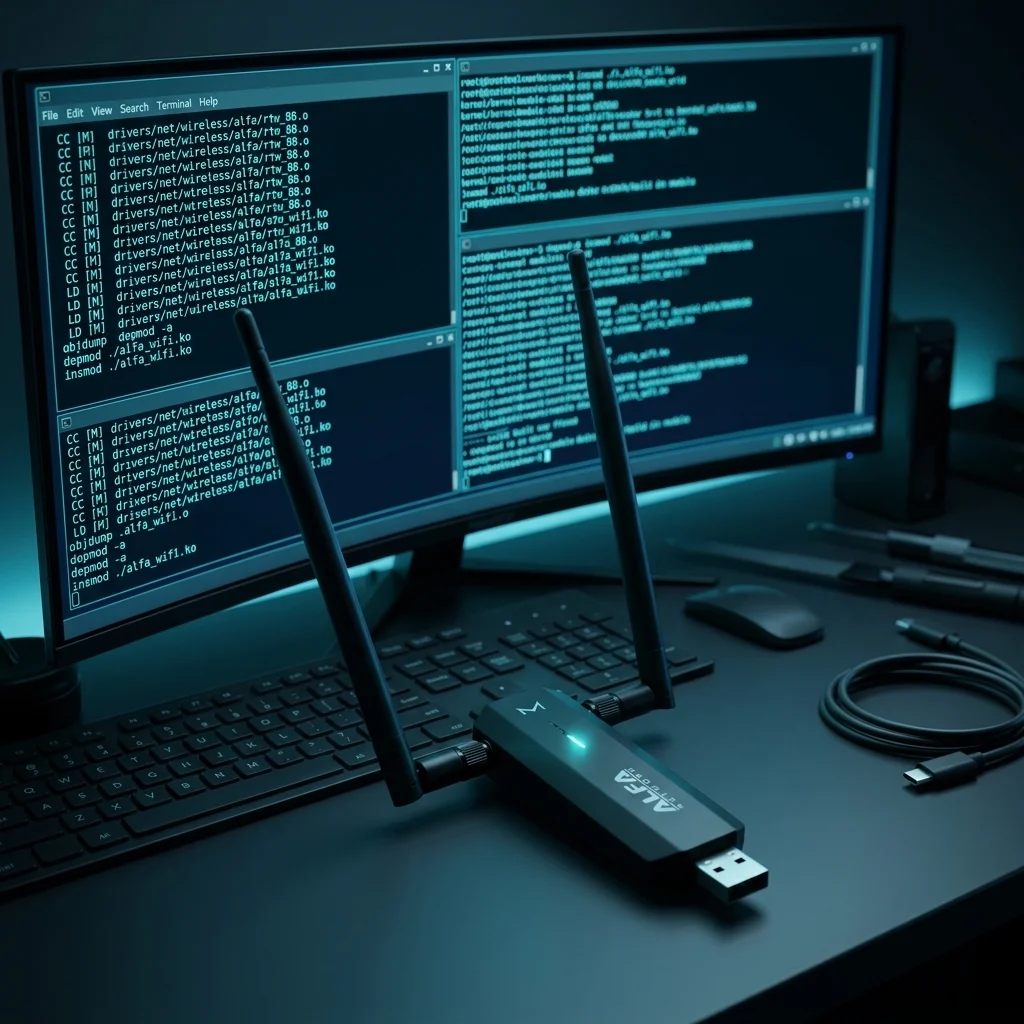
The AWUS036AXM is ALFA’s WiFi 6E tri-band adapter with a space-saving L-shaped USB-A connector. Its MT7921AUN chip uses the mt7921u driver, built into the Linux kernel since version 5.18. The L-shaped connector keeps adjacent USB ports free on laptops. This guide covers the full setup — firmware, driver verification, monitor mode, packet injection, and VIF — without touching GitHub.
Make sure you have these ready:
Before You Start#
Make sure you have these ready:
- ALFA AWUS036AXM adapter
- A powered USB hub — required if you are on Raspberry Pi
- Active internet connection to reach domestic mirrors
Plug in the adapter, then confirm your system sees it:
lsusbLook for this in the output:
Bus 001 Device 003: ID 0e8d:7961 MediaTek Inc.If you see 0e8d:7961, the adapter is detected. Move to your OS section below.
If you do not see it, try a different USB-A port, then run lsusb again.
Choose Your Operating System#
Jump to the right section for your OS:
Already installed? Skip to:
Kali Linux#
The MT7921AUN driver is already in the Kali kernel. All you need is the MediaTek firmware package, available from domestic mirrors.
Step 1: Switch to China Mirror#
Open your sources list in the terminal.
sudo nano /etc/apt/sources.listDelete whatever is there, then paste this line:
deb http://mirrors.ustc.edu.cn/kali kali-rolling main contrib non-free non-free-firmwareSave: press Ctrl+O, then Enter, then Ctrl+X to exit. Refresh the package index.
sudo apt updateBackup mirror: If 中科大 (USTC) is slow, use 清华 (Tsinghua) instead:
deb https://mirrors.tuna.tsinghua.edu.cn/kali kali-rolling main contrib non-free non-free-firmware
Step 2: Install Firmware#
The MT7921AUN requires firmware blobs from firmware-misc-nonfree and linux-firmware. Without them the driver loads but the adapter fails to initialise.
sudo apt install -y linux-firmware firmware-misc-nonfree
sudo reboot
Step 3: Verify the Driver#
After reboot, plug in the adapter and check.
lsmod | grep mt7921You should see mt7921u in the output. Then confirm a wireless interface appeared.
iwconfigLook for wlan0 or wlan1. If it appears, the driver is working.
Step 4: Enable Monitor Mode#
Check the interface name first.
iwconfigUse the name you see (e.g. wlan1). Kill interfering processes, then switch to monitor mode.
sudo airmon-ng check kill
sudo ip link set wlan1 down
sudo iw dev wlan1 set type monitor
sudo ip link set wlan1 up
Confirm the switch.
iwconfigLook for Mode:Monitor on the interface.
Step 5: Test Packet Injection#
sudo aireplay-ng --test wlan1A successful result:
Trying broadcast probe requests...
Injection is working!
Found 1 AP
If it fails, reboot and try again.
Ubuntu 22.04 / 24.04#
Ubuntu 24.04 (Noble) — kernel 6.8, plug-and-play#
Ubuntu 24.04 ships kernel 6.8, which includes the MT7921AUN driver natively.
Step 1: Switch to China Mirror#
sudo nano /etc/apt/sources.list.d/ubuntu.sourcesDelete everything and paste:
Types: deb
URIs: http://mirrors.aliyun.com/ubuntu/
Suites: noble noble-updates noble-security
Components: main restricted universe multiverse
Signed-By: /usr/share/keyrings/ubuntu-archive-keyring.gpg
Save with Ctrl+O, then exit with Ctrl+X.
sudo apt updateStep 2: Install Firmware#
sudo apt install -y linux-firmware
sudo reboot
Step 3: Verify and Enable Monitor Mode#
After reboot, run lsmod | grep mt7921 to confirm the driver loaded, then follow the Kali monitor mode steps above (Step 4).
Ubuntu 22.04 (Jammy) — HWE kernel required#
Ubuntu 22.04 ships kernel 5.15. The MT7921AUN driver requires kernel ≥ 5.18. Install the HWE kernel first.
Step 1: Switch to China Mirror#
sudo nano /etc/apt/sources.listReplace all lines with:
deb http://mirrors.aliyun.com/ubuntu/ jammy main restricted universe multiverse
deb http://mirrors.aliyun.com/ubuntu/ jammy-updates main restricted universe multiverse
deb http://mirrors.aliyun.com/ubuntu/ jammy-security main restricted universe multiverse
Save and exit (Ctrl+O, then Ctrl+X).
sudo apt updateStep 2: Install HWE Kernel#
sudo apt install -y linux-generic-hwe-22.04
sudo reboot
After reboot, confirm kernel version:
uname -rYou should see 5.19 or higher. Then install firmware and enable monitor mode as above.
Step 3: Install Firmware#
sudo apt install -y linux-firmware
sudo rebootDebian#
Step 1: Switch to China Mirror#
sudo nano /etc/apt/sources.listDelete everything and paste (Debian 12 Bookworm):
deb https://mirrors.tuna.tsinghua.edu.cn/debian/ bookworm main contrib non-free non-free-firmware
deb https://mirrors.tuna.tsinghua.edu.cn/debian/ bookworm-updates main contrib non-free non-free-firmware
deb https://mirrors.tuna.tsinghua.edu.cn/debian-security bookworm-security main contrib non-free non-free-firmware
Save with Ctrl+O, then exit with Ctrl+X.
sudo apt updateStep 2: Install Firmware#
Debian 12 Bookworm ships kernel 6.1 — compatible with MT7921AUN.
sudo apt install -y firmware-misc-nonfree linux-firmware
sudo reboot
Step 3: Verify and Enable Monitor Mode#
lsmod | grep mt7921
sudo airmon-ng check kill
sudo ip link set wlan1 down
sudo iw dev wlan1 set type monitor
sudo ip link set wlan1 up
iwconfig
Step 4: Test Packet Injection#
sudo aireplay-ng --test wlan1Injection is working! confirms the adapter is fully operational.
Raspberry Pi 4B / 5#
The AWUS036AXM draws up to 2.7W under load. Always use a powered USB hub on Raspberry Pi.
Step 1: Download Kali Linux ARM64 Image#
Official page: https://www.kali.org/get-kali/#kali-arm
Pick Raspberry Pi 4 (64-bit) or Raspberry Pi 5 (64-bit) — 64-bit is required.
China mirror: https://repo.huaweicloud.com/kali-images/ — browse to the latest release folder and download the ARM64 image.
Step 2: Flash to MicroSD#
lsblk
# Replace /dev/sdX with your actual SD card
sudo dd if=kali-linux-2025.1-raspberry-pi-arm64.img of=/dev/sdX bs=4M status=progress conv=fsync
sync
Default credentials: kali / kali.
Step 3: Switch to China Mirror and Install Firmware#
sudo nano /etc/apt/sources.listReplace with:
deb http://mirrors.ustc.edu.cn/kali kali-rolling main contrib non-free non-free-firmwareThen:
sudo apt update && sudo apt full-upgrade -y
sudo apt install -y linux-firmware firmware-misc-nonfree
sudo reboot
Step 4: Verify Driver#
lsmod | grep mt7921mt7921u should appear.
Step 5: Enable Monitor Mode#
On a Pi with built-in Wi-Fi, the AWUS036AXM shows up as wlan1.
iwconfig
sudo airmon-ng check kill
sudo ip link set wlan1 down
sudo iw dev wlan1 set type monitor
sudo ip link set wlan1 up
iwconfig
Step 6: Test Packet Injection#
sudo aireplay-ng --test wlan1Virtual Machine USB Passthrough#
VirtualBox#
- Power off the VM. Go to Settings → USB.
- Enable USB 3.0 (xHCI) Controller.
- Click + to add a USB filter.
- Select: MediaTek Inc. (ID: 0e8d:7961).
- Start the VM — the adapter appears inside Kali.
Run lsusb in the VM to confirm 0e8d:7961, then follow the Kali steps above.
VMware Fusion (macOS) / VMware Workstation (Windows)#
- Start the VM.
- Menu: Virtual Machine → USB & Bluetooth.
- Find MediaTek MT7921AUN and click Connect.
- Run
lsusbin the VM to confirm, then follow the Kali steps above.
Virtual Interface (VIF)#
The MT7921AUN has full kernel-native VIF support. You can run a monitor interface and a managed interface on the same adapter simultaneously — no patches required.
Create a Monitor Interface Alongside Managed Mode#
sudo iw dev wlan0 interface add mon0 type monitor
sudo ip link set mon0 up
iwconfig
You should see both wlan0 (managed) and mon0 (monitor) active at the same time.
Monitor While Staying Connected#
sudo airodump-ng mon0wlan0 stays associated while mon0 captures everything in range.
Fake AP + Monitor#
sudo iw dev wlan0 interface add ap0 type __ap
sudo iw dev wlan0 interface add mon0 type monitor
sudo ip link set ap0 up
sudo ip link set mon0 up
iwconfig
Note on hostapd: Full AP operation requires configuring
hostapd. The steps above confirm the adapter can create the interface — actual AP configuration is a separate topic.
常見問題
What chipset does AWUS036AXM use? Does it support WiFi 6E?
It uses the MediaTek MT7921AUN chipset, supporting WiFi 6E tri-band (2.4/5/6 GHz).
Does AWUS036AXM need manual driver installation?
No. The mt7921u driver has been in the Linux kernel since 5.18. Only the firmware package needs installing.
Does AWUS036AXM support VIF virtual interfaces?
Yes. MT7921AUN fully supports kernel-native VIF, allowing simultaneous connectivity and packet monitoring.
Why does the AWUS036AXM driver fail to load on Ubuntu 22.04?
Ubuntu 22.04 ships with kernel 5.15, which is too old. Install the HWE kernel to upgrade to 5.18 or higher.
What is the USB ID of AWUS036AXM?
The MediaTek MT7921AUN USB ID is 0e8d:7961. Confirm with lsusb.
Troubleshooting#
| Problem | Likely Cause | Fix |
|---|---|---|
lsusb doesn’t show 0e8d:7961 | Adapter not powered or bad cable | Try a different USB-A port. Use powered hub on Raspberry Pi. |
lsmod shows no mt7921u | Firmware not installed or old kernel | Run sudo apt install linux-firmware firmware-misc-nonfree && sudo reboot |
| Ubuntu 22.04 doesn’t load driver | Kernel 5.15 too old | Install HWE: sudo apt install linux-generic-hwe-22.04 |
| Interface appears but won’t associate | Firmware blobs missing | Run sudo apt install firmware-misc-nonfree then reboot |
| Monitor mode switch fails | Interface still up | Run sudo ip link set wlan1 down before the iw dev command |
| Injection test says “No Answer” | AP too far or wrong interface | Move closer. Verify Mode:Monitor with iwconfig. |
| VIF interface creation fails | Driver not fully loaded | Unplug, then: sudo rmmod mt7921u && sudo modprobe mt7921u |
China Mirror Reference#
| Resource | URL | Use for |
|---|---|---|
| Alfa official drivers | files.alfa.com.tw | Driver packages, firmware |
| Alfa documentation | wiki.alfa.com.tw | Product manuals |
| 清华大学镜像 | mirrors.tuna.tsinghua.edu.cn | Kali / Debian / Ubuntu |
| 阿里云镜像 | mirrors.aliyun.com | Ubuntu (recommended) |
| 中科大镜像 | mirrors.ustc.edu.cn | Kali (recommended) |
| 华为云镜像 | repo.huaweicloud.com | Kali ARM images (backup) |
More Alfa Adapter Guides for China#
This is part of the Alfa China Install Guide series:
- AWUS036ACH China Install Guide — RTL8812AU, high power
- AWUS036ACM China Install Guide — MT7612U, full VIF
- AWUS036ACS China Install Guide — RTL8811AU, monitor mode
- AWUS036AX China Install Guide — RTL8832BU, WiFi 6
- AWUS036AXER China Install Guide — RTL8832BU, nano
- AWUS036AXM ← you are here
- AWUS036AXML China Install Guide — MT7921AUN, WiFi 6E
- AWUS036EACS China Install Guide — RTL8821CU, Windows
Questions? Leave a comment below or contact us at yupitek.com.