- Yopitek Ltd/
- Blog/
- ALFA AWUS036AX Driver Install Guide for China: Kali Linux, Ubuntu, Debian & Raspberry Pi/
ALFA AWUS036AX Driver Install Guide for China: Kali Linux, Ubuntu, Debian & Raspberry Pi
Table of Contents
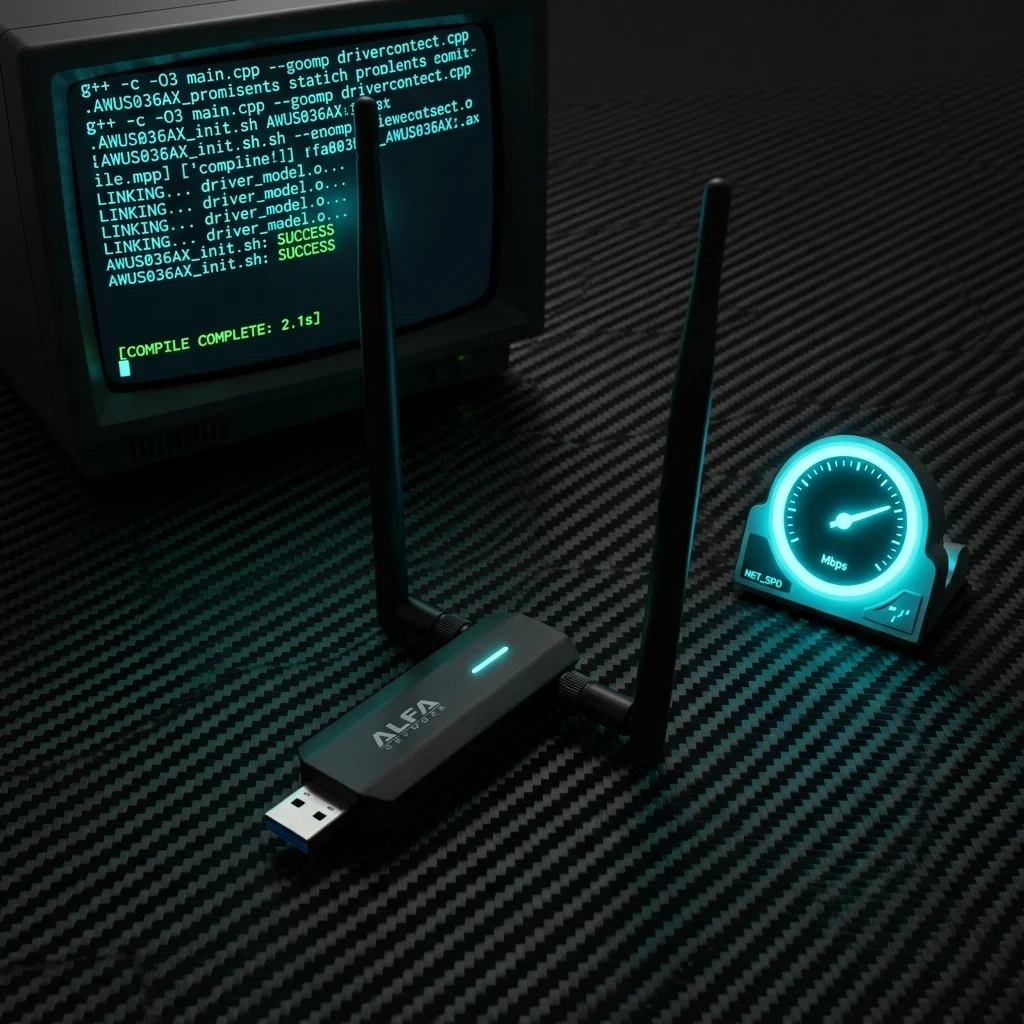
The AWUS036AX is ALFA’s WiFi 6 AX1800 dual-band adapter. Its RTL8832BU chip is out-of-kernel on Linux versions below 6.14 — but Ubuntu 24.04 (kernel 6.8) includes it natively. This guide uses Gitee mirrors for older kernels and the built-in driver for Ubuntu 24.04. No GitHub required.
Security research note: The RTL8832BU has limited monitor mode support. Results vary by kernel and driver version. For reliable packet injection on Kali Linux, the AWUS036ACM or AWUS036ACH are better choices.
Before You Start#
- ALFA AWUS036AX adapter
- USB-A cable
- Active internet connection
lsusbLook for:
Bus 001 Device 003: ID 0bda:885a Realtek Semiconductor Corp.Choose Your Operating System#
Kali Linux#
Step 1: Switch to China Mirror#
sudo nano /etc/apt/sources.listdeb http://mirrors.ustc.edu.cn/kali kali-rolling main contrib non-free non-free-firmwaresudo apt updateStep 2: Install Build Dependencies#
sudo apt install -y build-essential dkms bc iw git linux-headers-$(uname -r)Step 3: Clone Driver from Gitee#
git clone https://gitee.com/mirrors/rtl8852bu.git
cd rtl8852bu
NOTE: If that Gitee URL does not load, search Gitee for
rtl8852buand pick the most recently updated fork. You can also download archives from files.alfa.com.tw.
Step 4: Compile and Install#
sudo ./install-driver.sh
sudo reboot
Verify the driver loaded:
lsmod | grep 88x2bu
iwconfig
Step 5: Enable Monitor Mode#
Note: Monitor mode support is limited on the RTL8832BU. The following commands work on most setups but results may vary.
sudo airmon-ng check kill
sudo ip link set wlan1 down
sudo iw dev wlan1 set type monitor
sudo ip link set wlan1 up
iwconfig
Step 6: Test Packet Injection#
sudo aireplay-ng --test wlan1If injection is unreliable, consider the AWUS036ACM for penetration testing work.
Ubuntu 22.04 / 24.04#
Ubuntu 24.04 (Noble) — driver in-kernel, no Gitee needed#
Ubuntu 24.04 ships kernel 6.8, which includes the RTL8832BU driver natively.
sudo nano /etc/apt/sources.list.d/ubuntu.sourcesTypes: deb
URIs: http://mirrors.aliyun.com/ubuntu/
Suites: noble noble-updates noble-security
Components: main restricted universe multiverse
Signed-By: /usr/share/keyrings/ubuntu-archive-keyring.gpgsudo apt update
sudo modprobe 88x2bu
iwconfigIf the module loads and an interface appears, you are done. Proceed to monitor mode steps above.
Ubuntu 22.04 (Jammy) — DKMS required#
sudo nano /etc/apt/sources.listdeb http://mirrors.aliyun.com/ubuntu/ jammy main restricted universe multiverse
deb http://mirrors.aliyun.com/ubuntu/ jammy-updates main restricted universe multiverse
deb http://mirrors.aliyun.com/ubuntu/ jammy-security main restricted universe multiversesudo apt update
sudo apt install -y build-essential dkms git linux-headers-$(uname -r)
git clone https://gitee.com/mirrors/rtl8852bu.git
cd rtl8852bu
sudo ./install-driver.sh
sudo rebootDebian#
sudo nano /etc/apt/sources.listdeb https://mirrors.tuna.tsinghua.edu.cn/debian/ bookworm main contrib non-free non-free-firmware
deb https://mirrors.tuna.tsinghua.edu.cn/debian/ bookworm-updates main contrib non-free non-free-firmware
deb https://mirrors.tuna.tsinghua.edu.cn/debian-security bookworm-security main contrib non-free non-free-firmwaresudo apt update
sudo apt install -y git build-essential dkms linux-headers-$(uname -r)
git clone https://gitee.com/mirrors/rtl8852bu.git
cd rtl8852bu
sudo ./install-driver.sh
sudo rebootEnable monitor mode same as Kali steps above.
Raspberry Pi 4B / 5#
Switch to China mirror first:
sudo nano /etc/apt/sources.listdeb http://mirrors.ustc.edu.cn/kali kali-rolling main contrib non-free non-free-firmwaresudo apt update && sudo apt full-upgrade -y
sudo apt install -y git bc dkms build-essential raspberrypi-kernel-headers
git clone https://gitee.com/mirrors/rtl8852bu.git
cd rtl8852bu
sudo ./install-driver.sh
sudo rebootVirtual Machine USB Passthrough#
VirtualBox#
- Settings → USB → Enable USB 3.0 (xHCI).
- Add filter: Realtek (ID: 0bda:885a).
- Start VM →
lsusbto confirm → follow Kali steps.
VMware#
- Virtual Machine → USB & Bluetooth → Find Realtek RTL8832BU → Connect.
lsusbto confirm → follow Kali steps.
常見問題
What chipset does AWUS036AX use? Does it support WiFi 6?
It uses the Realtek RTL8832BU chipset, supporting WiFi 6 (802.11ax) high-speed networking.
Does AWUS036AX need drivers on Ubuntu 24.04?
No. Ubuntu 24.04 kernel natively supports RTL8832BU. Plug and play.
Is AWUS036AX suitable for wireless security research?
Not ideal. RTL8832BU has limited monitor mode support. AWUS036ACM or AWUS036ACH are recommended instead.
Do I need a VPN to install AWUS036AX in China?
No. Download rtl8852bu source from Gitee and install build tools from domestic mirrors.
What is the USB ID of AWUS036AX?
The Realtek RTL8832BU USB ID is 0bda:8832. Confirm with lsusb.
Troubleshooting#
| Problem | Likely Cause | Fix |
|---|---|---|
lsusb doesn’t show 0bda:885a | Adapter not detected | Try different USB port |
install-driver.sh fails | Missing headers | sudo apt install linux-headers-$(uname -r) |
| Gitee clone fails | Network issue | Search gitee.com for rtl8852bu |
Ubuntu 24.04: modprobe 88x2bu fails | Module not present | Install linux-modules-extra-$(uname -r) |
| Monitor mode unreliable | RTL8832BU limitation | Use AWUS036ACM for pentest work |
Note on VIF: The RTL8832BU out-of-kernel driver does not support Virtual Interfaces (VIF).
China Mirror Reference#
| Resource | URL | Use for |
|---|---|---|
| Alfa official drivers | files.alfa.com.tw | Driver packages |
| rtl8852bu (Gitee) | gitee.com/mirrors/rtl8852bu | RTL8832BU driver |
| 清华大学镜像 | mirrors.tuna.tsinghua.edu.cn | Kali / Debian / Ubuntu |
| 阿里云镜像 | mirrors.aliyun.com | Ubuntu |
| 中科大镜像 | mirrors.ustc.edu.cn | Kali |
| 华为云镜像 | repo.huaweicloud.com | Kali ARM |
More Alfa Adapter Guides for China#
- AWUS036ACH China Install Guide — RTL8812AU, high power
- AWUS036ACM China Install Guide — MT7612U, full VIF
- AWUS036ACS China Install Guide — RTL8811AU, monitor mode
- AWUS036AX ← you are here
- AWUS036AXER China Install Guide — RTL8832BU, nano
- AWUS036AXM China Install Guide — MT7921AUN, L-shape
- AWUS036AXML China Install Guide — MT7921AUN, WiFi 6E
- AWUS036EACS China Install Guide — RTL8821CU, Windows
Questions? Leave a comment below or contact us at yupitek.com.