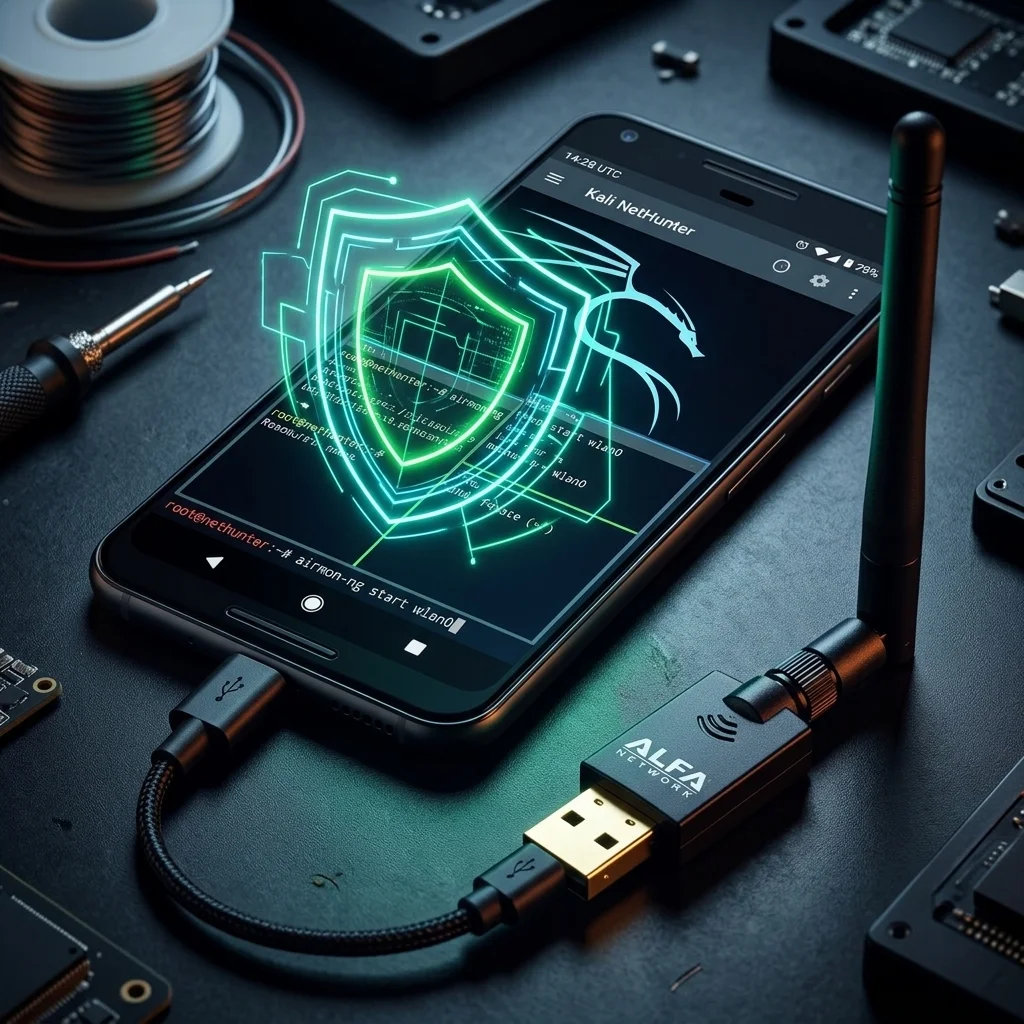
Using ALFA WiFi Adapters with Kali NetHunter via USB OTG
Table of Contents
Your Android phone is already a powerful computer in your pocket. With Kali NetHunter installed on a rooted device and an ALFA WiFi adapter plugged in via USB OTG, it becomes a genuinely capable pocket-sized penetration testing platform. No laptop required. No bulky hardware. Just your phone, a short OTG cable, and an adapter that supports monitor mode and packet injection.
This guide covers everything you need to get an ALFA AWUS036ACH (or compatible adapter) working under NetHunter — from hardware selection through driver loading, monitor mode activation, and the wireless tools built into the NetHunter app.
What Is Kali NetHunter?#
Kali NetHunter is Kali Linux’s official mobile penetration testing platform. Rather than replacing Android, NetHunter installs a Kali Linux chroot environment on top of your existing Android installation. Your phone continues to function as a normal Android device while simultaneously running a full Kali Linux userland with all its tools.
Key characteristics:
- Runs without wiping Android — your apps, contacts, and data stay intact
- Includes the NetHunter app, a dedicated launcher for attack modules and hardware control
- Provides a full terminal with access to the Kali toolset (Metasploit, Aircrack-ng, Nmap, and hundreds more)
- Requires a rooted Android device for full functionality
Three editions:
| Edition | Root Required | Kernel Mods | Use Case |
|---|---|---|---|
| NetHunter (Full) | Yes | Yes (custom kernel) | Full attack surface, hardware interface support |
| NetHunter Lite | Yes | No | Root-only tools, no custom kernel needed |
| NetHunter Rootless | No | No | Limited tools, no hardware attacks |
For USB OTG adapter support with monitor mode, you need the full NetHunter edition with a custom kernel that includes the RTL8812AU module.
Officially supported devices include models from OnePlus, Google Pixel, and selected Samsung Galaxy devices. For the complete and current list, see the official NetHunter device page.
USB OTG is a mandatory requirement. Before purchasing hardware, verify that your specific device model supports USB OTG. Most modern devices do, but some budget models and older hardware may lack the necessary USB controller support.
Hardware Requirements#
Getting this setup right means choosing compatible hardware at every level. A mismatch anywhere in the chain — device, cable, or adapter — will result in the adapter never appearing in lsusb, intermittent disconnects, or driver failures.
| Item | Requirement | Notes |
|---|---|---|
| Android device | Rooted, NetHunter-supported, USB OTG capable | Verify OTG support before purchasing; full NetHunter with custom kernel required |
| USB OTG cable / adapter | USB-C OTG or Micro-USB OTG depending on device port | Quality matters — cheap cables cause intermittent disconnects |
| ALFA WiFi adapter | AWUS036ACH or AWUS036ACM recommended | AWUS036ACH (RTL8812AU) has best NetHunter kernel module support; AWUS036ACM (MT7612U) also compatible |
| Powered USB OTG hub | Strongly recommended | Prevents adapter-induced battery drain and USB instability |
On choosing a powered OTG hub:
Look for a hub explicitly marketed as supporting USB OTG with power delivery passthrough. This means the hub takes 5V from a USB charger, powers attached devices from the charger rather than the phone, and still passes data between the phone and attached devices. Not all USB hubs support this — check the product specifications carefully before buying.
Supported ALFA Adapters for NetHunter#
NetHunter’s custom kernel includes pre-compiled kernel modules for a specific set of chipsets. The RTL8812AU chipset family has the strongest support because it was integrated early and is actively maintained.
| Adapter | Chipset | NetHunter Support | Notes |
|---|---|---|---|
| AWUS036ACH | RTL8812AU | ✅ Best support | NetHunter kernel includes 88XXau module; monitor mode and packet injection fully supported |
| AWUS036ACM | MT7612U | ✅ Good support | Alternative chipset; generally works; verify against your specific device kernel |
| AWUS036ACS | RTL8811AU | ✅ Works | Same driver family as RTL8812AU; lower power draw (~300mW); single-band 2.4/5 GHz |
| AWUS036AXM | MT7921AUN | ⚠️ Limited | WiFi 6E adapter; kernel module availability depends on device and kernel version |
| AWUS036AXML | MT7921AUN | ⚠️ Limited | Same chipset as AXM; not universally supported in NetHunter kernels |
Recommendation: For reliable NetHunter operation, stick with RTL8812AU-based adapters. The 88XXau driver is specifically included in most NetHunter custom kernels, you’ll find extensive community documentation for it, and the troubleshooting path is well-understood. The WiFi 6E adapters are technically impressive but not worth the compatibility risk for a mobile pentest setup where reliability matters more than raw throughput.
If you want dual-band AC1200 capability with broad NetHunter compatibility, the AWUS036ACH is the correct choice.
Setup Steps#
The following steps assume you have a rooted Android device with full NetHunter installed and a USB OTG cable or powered hub ready.
Step 1: Open the NetHunter App#
Launch the NetHunter app on your Android device. Navigate to Kali Services to verify that the chroot environment is running. If it is not running, tap Start to bring it up. The chroot must be active before the kernel can expose USB devices to Kali tools.
Step 2: Connect the ALFA Adapter via OTG#
Plug your USB OTG cable or hub into the phone’s USB port, then connect the ALFA adapter to the OTG cable or hub. If you are using a powered hub, connect the hub’s power adapter to a wall outlet first.
Step 3: Grant USB Permission#
Android will display a permission dialog asking whether the NetHunter app is allowed to access the USB device. Tap OK and check Always allow if you want to skip this prompt in future sessions. If you dismiss this dialog without granting permission, the adapter will not be accessible from the Kali chroot.
Step 4: Verify the Adapter in lsusb#
Open the NetHunter terminal and run:
lsusbYou should see an entry containing Realtek Semiconductor along with the device ID. For the AWUS036ACH, expect something like:
Bus 001 Device 002: ID 0bda:8812 Realtek Semiconductor Corp. RTL8812AU 802.11a/b/g/n/ac 2T2R DB WLAN AdapterIf the Realtek device does not appear, the issue is at the hardware level — check the OTG cable, try a different cable, or verify that OTG is enabled in your device’s developer settings.
Step 5: Load the Driver#
sudo modprobe 88XXauOn most NetHunter builds the driver loads automatically when the adapter is detected. If the interface does not appear after connecting the adapter, run this command manually. The 88XXau module is the Aircrack-ng maintained RTL8812AU driver included in NetHunter’s custom kernel.
Step 6: Verify the Interface#
ip link show | grep wlanYou should see wlan1 (or wlan2 if your device has a built-in WiFi interface on wlan0). Confirm the interface is listed before attempting to enable monitor mode.
Step 7: Enable Monitor Mode#
sudo airmon-ng start wlan1If airmon-ng reports processes that could interfere with monitor mode, kill them first (see the commands section below), then re-run this command. The interface will be renamed to wlan1mon after monitor mode is activated.
Monitor Mode Commands on NetHunter#
The following command sequence covers the full workflow from adapter verification through active capture:
# Check adapter is recognized by the system
lsusb | grep -i realtek

# Load driver if not auto-loaded after connecting adapter
sudo modprobe 88XXau

# Kill processes that interfere with monitor mode (NetworkManager, wpa_supplicant, etc.)
sudo airmon-ng check kill

# Start monitor mode on the ALFA adapter interface
sudo airmon-ng start wlan1

# Scan all visible networks (press Ctrl+C to stop)
sudo airodump-ng wlan1mon

# Capture traffic from a specific network
# -c: channel, --bssid: target AP MAC address, -w: output file prefix
sudo airodump-ng -c 6 --bssid AA:BB:CC:DD:EE:FF -w capture wlan1mon
To stop monitor mode and return to managed mode:
sudo airmon-ng stop wlan1monTo check adapter capabilities and confirm monitor mode is active:
iwconfig wlan1monThe output should show Mode:Monitor if everything is working correctly.
NetHunter WiFi Attacks (Authorized Testing Only)#
The NetHunter app includes built-in GUI interfaces for several WiFi-focused attack modules. These are accessible without typing any terminal commands, making them useful for demonstrations or when operating in the field.
WiFi Evil Portal (WPS3): Available directly in the NetHunter app’s main menu. Creates a rogue access point with a captive portal for credential harvesting during authorized social engineering assessments. Requires an external adapter with AP mode support.
MANA Rogue AP Toolkit: Located at NetHunter app > Wireless Attacks > MANA Toolkit. MANA extends the standard rogue AP concept with KARMA-style attacks and SSL stripping capabilities. The full functionality requires a compatible external WiFi adapter — the internal Android WiFi chip is not sufficient for most MANA configurations.
Both modules interface directly with your ALFA adapter, which is why external adapter support is essential for practical use of these built-in tools.
Battery and Power Management#
Running an AWUS036ACH from a phone is demanding on the battery and the USB power delivery subsystem. Here is what to expect and how to mitigate it:
Power draw: The AWUS036ACH draws approximately 500mW continuously during active use. On a typical 3,500 mAh Android battery, this will roughly double your battery drain rate compared to normal phone usage.
Using a powered OTG hub: This is the most effective solution. The hub draws power from a wall adapter and supplies it to the ALFA adapter. The phone’s USB port only carries data, not power to the adapter. Battery drain returns to near-normal levels.
Operating while charging: If a powered hub is not available, you can mitigate battery drain by simultaneously charging the phone using a USB-C with PD passthrough hub. This requires a hub that supports both data passthrough (for the OTG function) and simultaneous charging input — these are available but require careful product selection.
Display management: The screen is the other major power consumer during field operations. Set display timeout to 30 seconds (Settings > Display > Sleep) and reduce brightness to minimum. Combined with a powered hub, this gives you practical multi-hour operation time.
Thermal considerations: Extended adapter operation in a phone case can cause heat buildup. If the phone’s thermal protection throttles the USB controller, adapter disconnects may occur. Remove the phone case during extended capture sessions.
Troubleshooting#
Adapter not recognized (lsusb shows nothing):
- Verify USB OTG is enabled — check Settings > Developer Options > OTG (location varies by Android version and manufacturer)
- Try a different OTG cable — cable quality is a common failure point
- Try the adapter in a different USB device to confirm the adapter itself is functional
- Confirm your device supports USB OTG by checking the manufacturer specifications
Driver not loading (no wlan1 interface after modprobe):
- Check
dmesgin the NetHunter terminal for USB and driver error messages:dmesg | tail -30 - Verify the NetHunter chroot is running and you are executing commands inside it
- Confirm your NetHunter build includes the
88XXaumodule:find /lib/modules -name "*88XX*"
wlan1 interface disappears during use:
This is almost always a USB power issue. The adapter is drawing more current than the phone’s USB port can sustain. Use a powered OTG hub. As a temporary measure, reduce transmission power with sudo iw dev wlan1 set txpower fixed 1000 (sets to 10 dBm).
Permission denied errors:
Ensure you are running commands as root in the NetHunter chroot. Run sudo su first, then execute the commands. Alternatively, prefix each command with sudo.
Monitor mode starts but no networks appear in airodump-ng:
- Confirm the channel is set correctly — try
sudo airodump-ng --band abg wlan1monto scan all bands - Check that
airmon-ng check killwas run before starting monitor mode - Verify the antenna is properly connected to the adapter
常見問題
Does Kali NetHunter with ALFA adapters require root?
Yes. The full NetHunter build requires a rooted Android device with a custom kernel to load the RTL8812AU module and enable USB OTG adapter support.
Which ALFA adapter is best for NetHunter?
The AWUS036ACH (RTL8812AU) is the best choice. NetHunter custom kernels include the 88XXau module, with full monitor mode and packet injection support.
Why do I need a powered USB OTG hub?
The AWUS036ACH draws about 500mW from USB. Powering it directly from the phone battery drains quickly and may cause disconnections under load. A powered hub draws from wall power and solves this completely.
Can WiFi 6E adapters (AWUS036AXML) work on NetHunter?
Support is limited. MT7921AUN kernel module availability depends on device and kernel version. NetHunter kernels do not broadly support it yet, so RTL8812AU adapters are recommended.
Which Android devices support NetHunter?
Officially supported devices include OnePlus, Google Pixel, and some Samsung Galaxy models. Check the NetHunter device page for the full list and confirm USB OTG support.
Related Guides#
For other platforms and use cases with ALFA adapters: